If you run more than one blog on WordPress, you have probably looked at Multisite, and maybe at a WordPress Multisite alternative. Multisite gives you one installation, one dashboard, and one place to update plugins, and for some teams that works well.
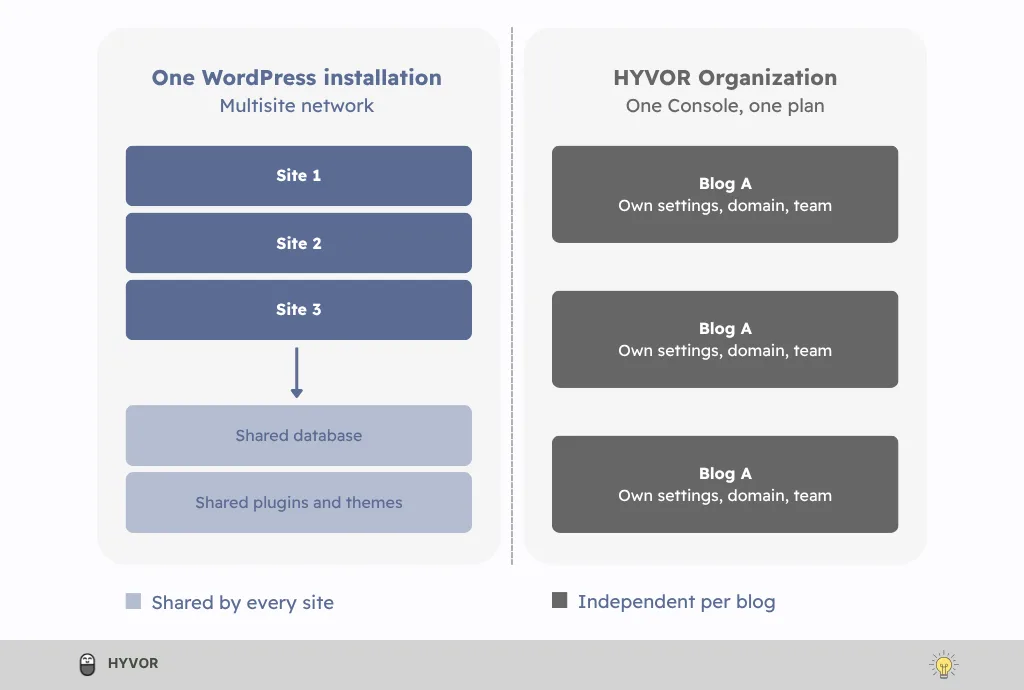
But many people turn to Multisite when what they want is simpler: a few blogs, one login, one bill. Multisite gives you that, and it also hands you a shared database, network-wide plugin decisions, and server configuration you now have to look after. Put another way, Multisite gives you central management by having the blogs share one installation. The real question is whether you need the sharing, or only the central management.
What WordPress Multisite is good at
Multisite has been part of WordPress since version 3.0 in 2010. It lets one WordPress installation run a network of sites. The sites share WordPress core, plugins, and themes, while each one gets its own database tables and upload folder. A Super Admin runs the network, and site admins run their own sites.
That model suits sites that are close siblings: university departments, franchise locations, or a group of blogs that share a design and a plugin list. Kinsta's comparison of Multisite and separate installs lists blog networks among the good fits, and we agree, as long as the blogs really are that alike.
WordPress's own documentation is candid about the rest. The page you read before creating a network opens with a section called "Do you really need a network?", and it points out that some things people want from Multisite can be done in a single site with a plugin.
Why people look for a WordPress Multisite alternative
Setting it up is server work
A subdirectory network (example.com/site1) needs mod_rewrite, .htaccess support and AllowOverride All on Apache, according to the server requirements. WordPress can write the Apache rules for you but not the Nginx ones. There are quieter rules too: you can't choose subdirectory mode for a site that has been live for more than a month, and the main site's post URLs pick up an extra /blog/ segment.
Turning an existing install into a network follows a fixed sequence: allow Multisite in wp-config.php, run Network Setup from the Tools menu, then copy the lines WordPress generates into both wp-config.php and .htaccess. The handbook also tells you to back up first and to deactivate your plugins before you start. None of it is hard if you have done it before. It is all yours to maintain afterwards.
Every site adds tables to one database
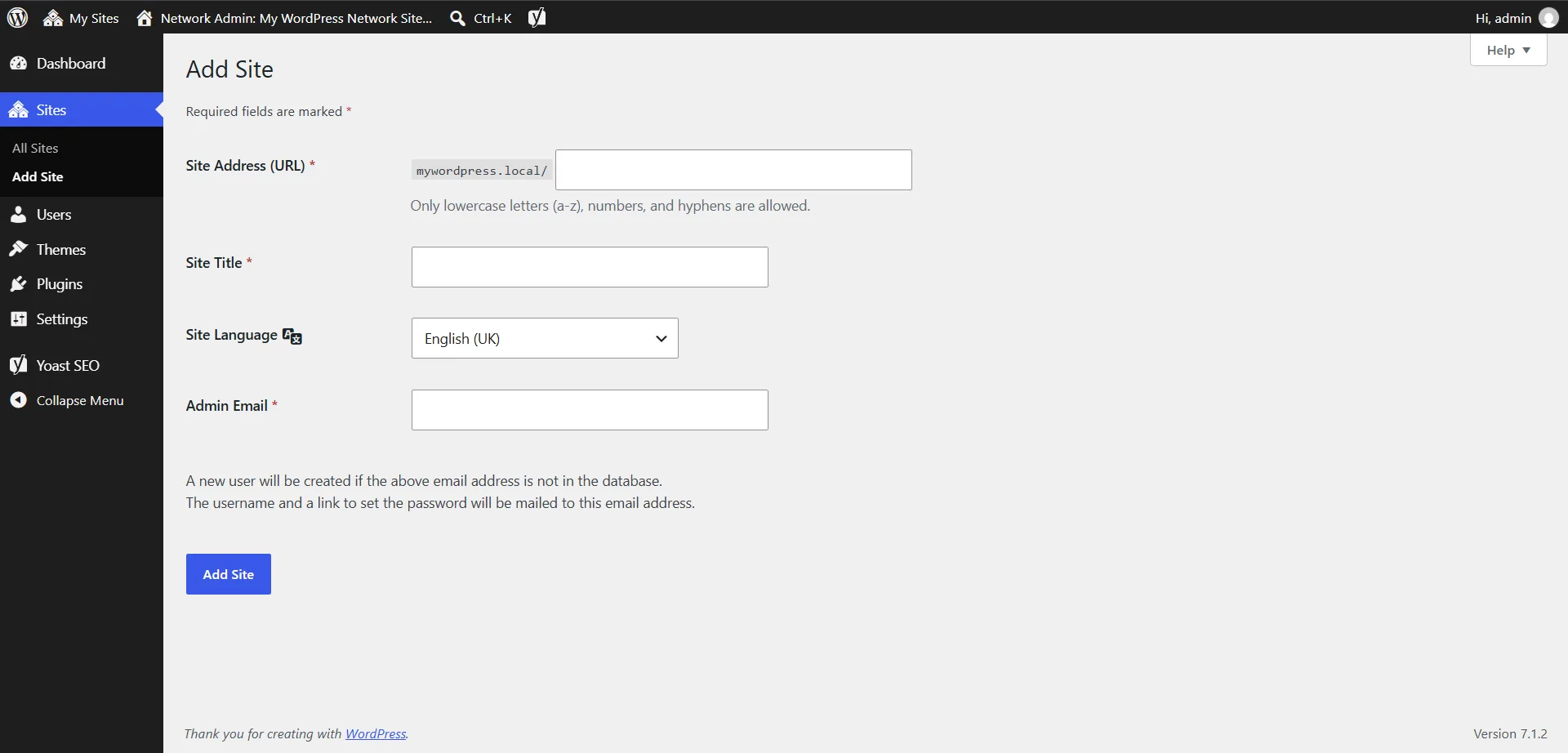
Multisite keeps every site in one database. Each site has its own tables, prefixed with the site's ID (wp_5_posts, wp_5_options, wp_5_comments and so on), while tables like wp_users are shared across the whole network. Media uploads get a separate directory for each site inside the shared installation.
That is by design, and at five sites it's fine. At fifty, you are looking at hundreds of tables in a single database that every blog depends on.
wp_users are sharedPlugins are the network's decision
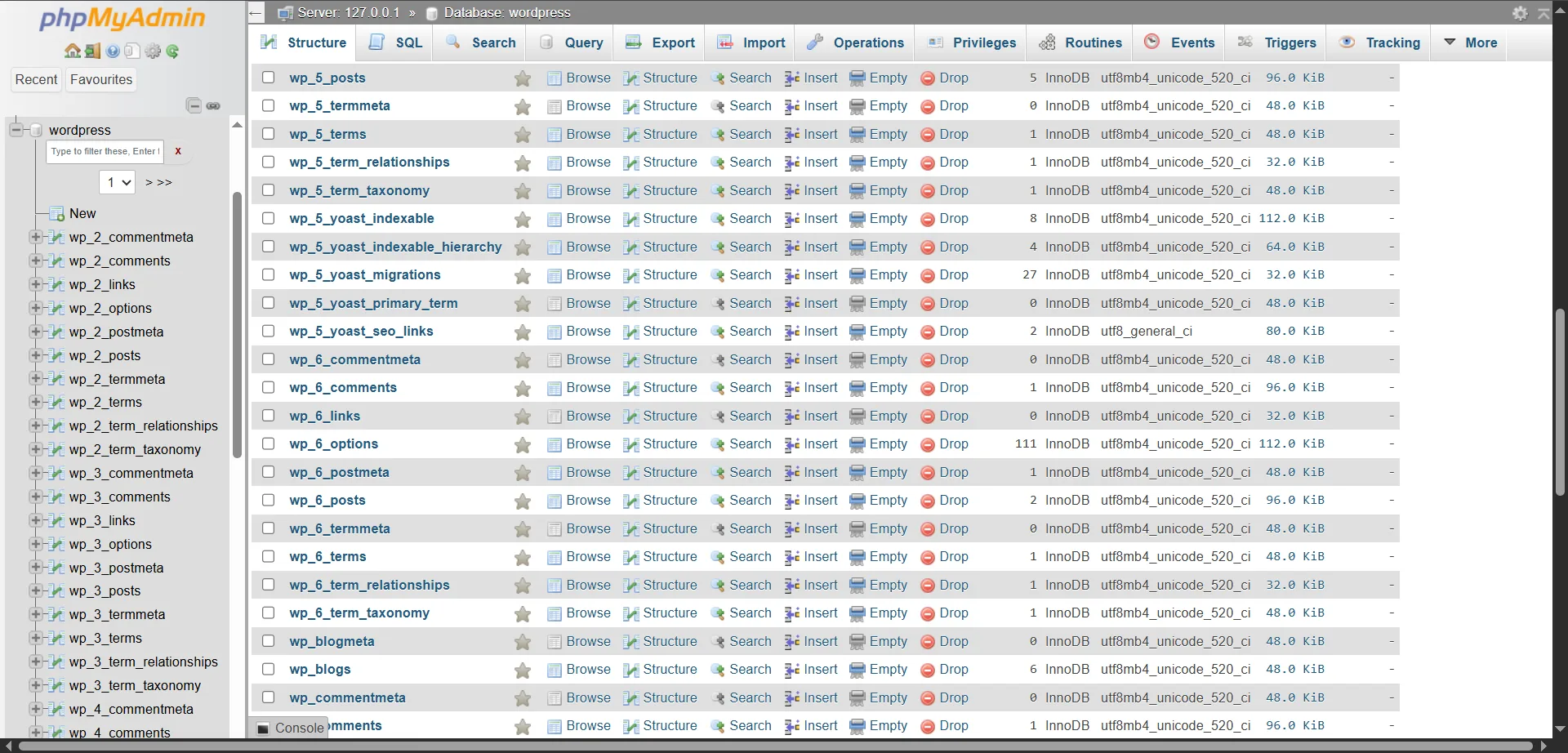
In a network, site admins can't install plugins or themes. Only the Super Admin can, and the Super Admin can also network-activate a plugin so it is on for every site at once. WordPress also warns that not every plugin works in Multisite, so each new plugin is a compatibility check.
Themes follow the same rule. If you edit a theme's code, you edit it for every site using that theme.
Custom domains take several steps
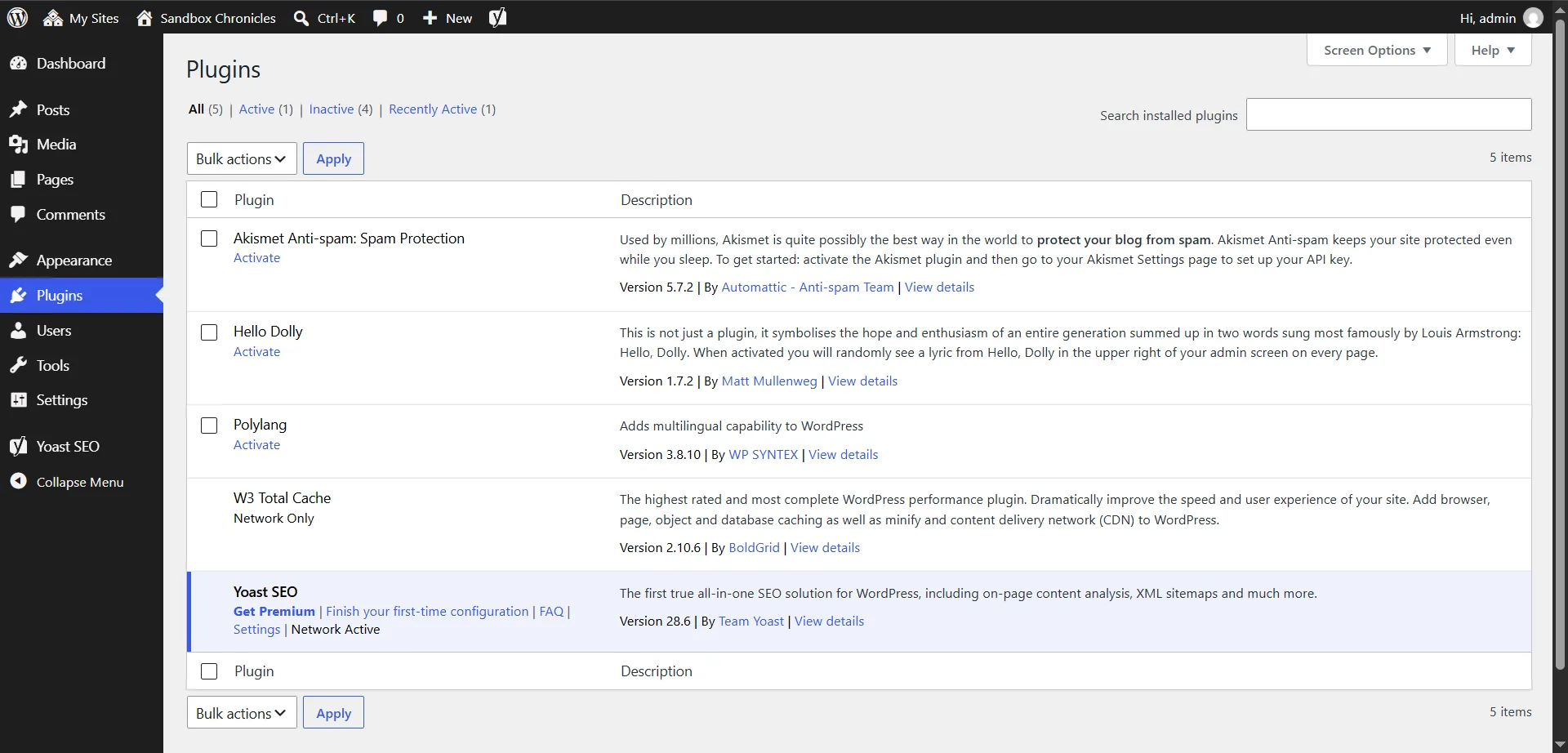
If each blog should live on its own domain, Multisite supports that natively since WordPress 4.5. The domain mapping guide goes like this: point every domain at your DNS, install an SSL certificate for each one, then open each site in Network Admin and change its Site Address to the new domain. If logins then fail with a cookie error, you add a COOKIE_DOMAIN line to wp-config.php.
That is up to four places to touch for every domain, and the handbook calls changing these settings by hand advanced administration. Subdomain networks add wildcard DNS or per-site virtual hosts on top.
One installation means one point of failure
Kinsta names two costs that come with a shared install: a problem with the network can slow down or take down every site, and restoring a backup for just one site is hard.
Moving one blog out is a bigger job
Leaving is the part that's hardest to undo. WordPress's docs say that moving Multisite is more complicated than moving a single install. Kinsta says that pulling one site out of a network is possible but difficult, and easy to get wrong, and Pantheon's documentation calls the choice between single-site WordPress and Multisite permanent on its platform. If one blog might one day need its own hosting, owner, or plugin set, that's worth knowing before you start.
None of this makes Multisite broken. It's a trade: central control in exchange for tying every blog to the same installation.
What are you actually trying to achieve?
Before picking a tool, it helps to split "I need Multisite" into what you really need. Most of it doesn't call for a shared WordPress installation.
You want to... | Do you need Multisite? | Other ways to get it |
|---|---|---|
Run several blogs | No | Separate WordPress installs, or a platform built for several blogs |
Manage them from one place | No | A tool like MainWP over separate installs, which Kinsta suggests, or the Hyvor Blogs Console |
Give each blog its own domain | No | Every separate install has its own domain, and each Hyvor blog can have a custom domain |
Give each blog its own theme and branding | No | Separate installs, or per-blog themes in Hyvor Blogs. In a network, editing a theme's code changes every site that uses it |
Share one set of plugins, themes, and user accounts across many sites | Yes, this is what it's for | Separate installs can share users too, but it takes more setup |
Let people create their own sites on demand | Yes | Multisite supports on-demand site creation |
If your list looks like the first four rows, the requirement is "several blogs, managed together", and Multisite is one answer among several. If it looks like the last two, Multisite is the tool built for the job.
Hyvor Blogs as a WordPress Multisite alternative
Hyvor Blogs is a blogging platform, not a general CMS, so things you would install as plugins in WordPress are built in: SEO settings, languages, redirects, comments through Hyvor Talk, and newsletters through Hyvor Post. Your blogs sit under an organization, and you manage them all from the Console.
Each blog keeps its own theme, settings, team, and domain.
Here is how the Multisite concepts map across:
In WordPress Multisite | In Hyvor Blogs |
|---|---|
Network | Organization |
Site (subsite) | Blog |
Network Admin dashboard | Console |
Super Admin | Organization Admin (members and settings) |
Site roles | Blog roles: Admin, Editor, Writer, Contributor |
Domain mapping | Custom domain, set in Settings → Hosting |
Subdirectory network ( | Subdirectory hosting on your own site ( |
SEO, caching and multilingual plugins | Built-in settings |
| A media library per blog |
Your server | Hosted by Hyvor, or self-hosted with Docker |
Setting up multiple blogs in Hyvor Blogs
1. Create your first blog
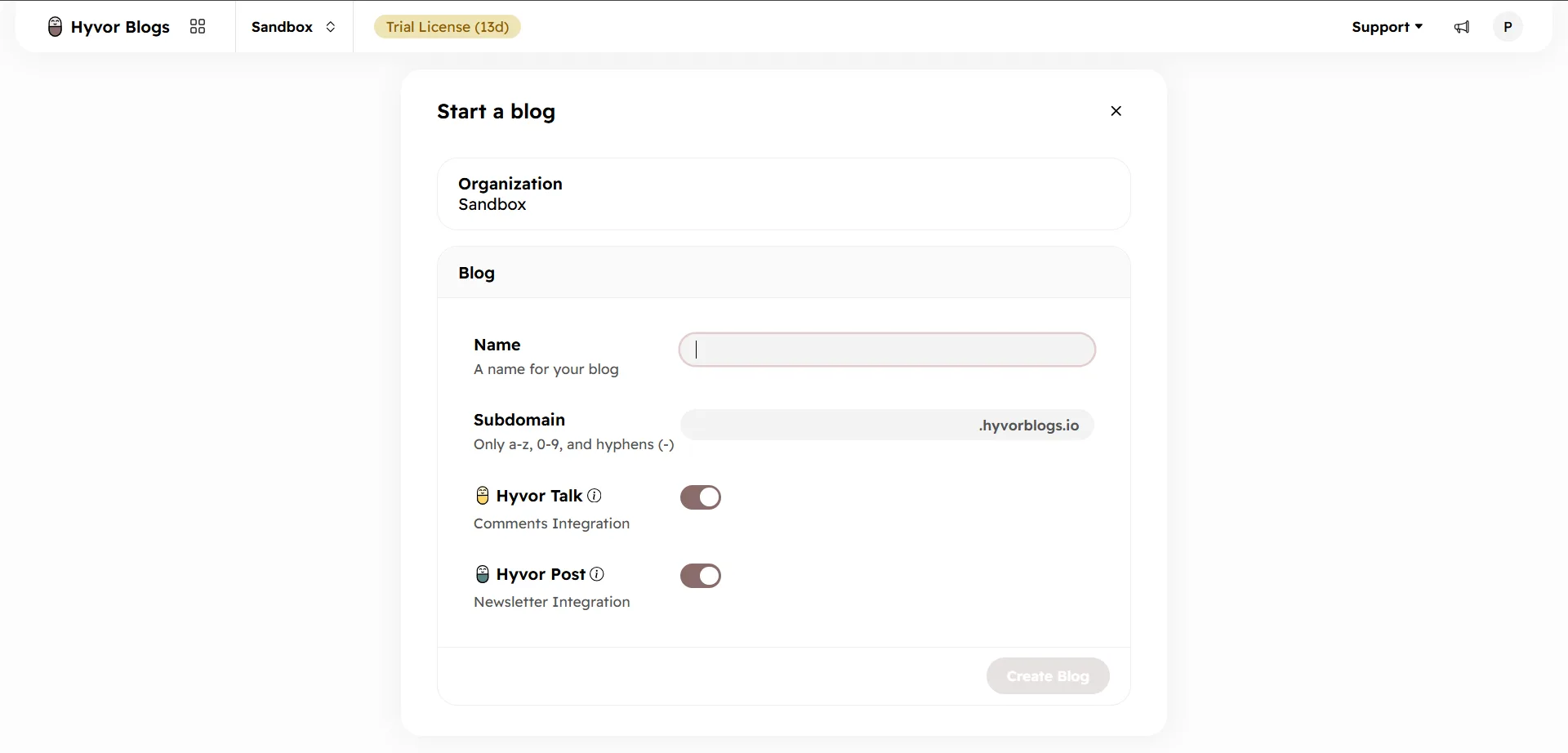
In the Console, click to start a blog. The form asks for a name and a subdomain on hyvorblogs.io, and it has two switches, Hyvor Talk and Hyvor Post, both on by default. Click Create Blog and the blog is live on its subdomain.
Repeat this for each blog. Running more than one blog needs the Starter plan or above (see the pricing section further down).
2. Give people access to the right blog
Access works in two layers, much like Multisite's network users plus site roles.
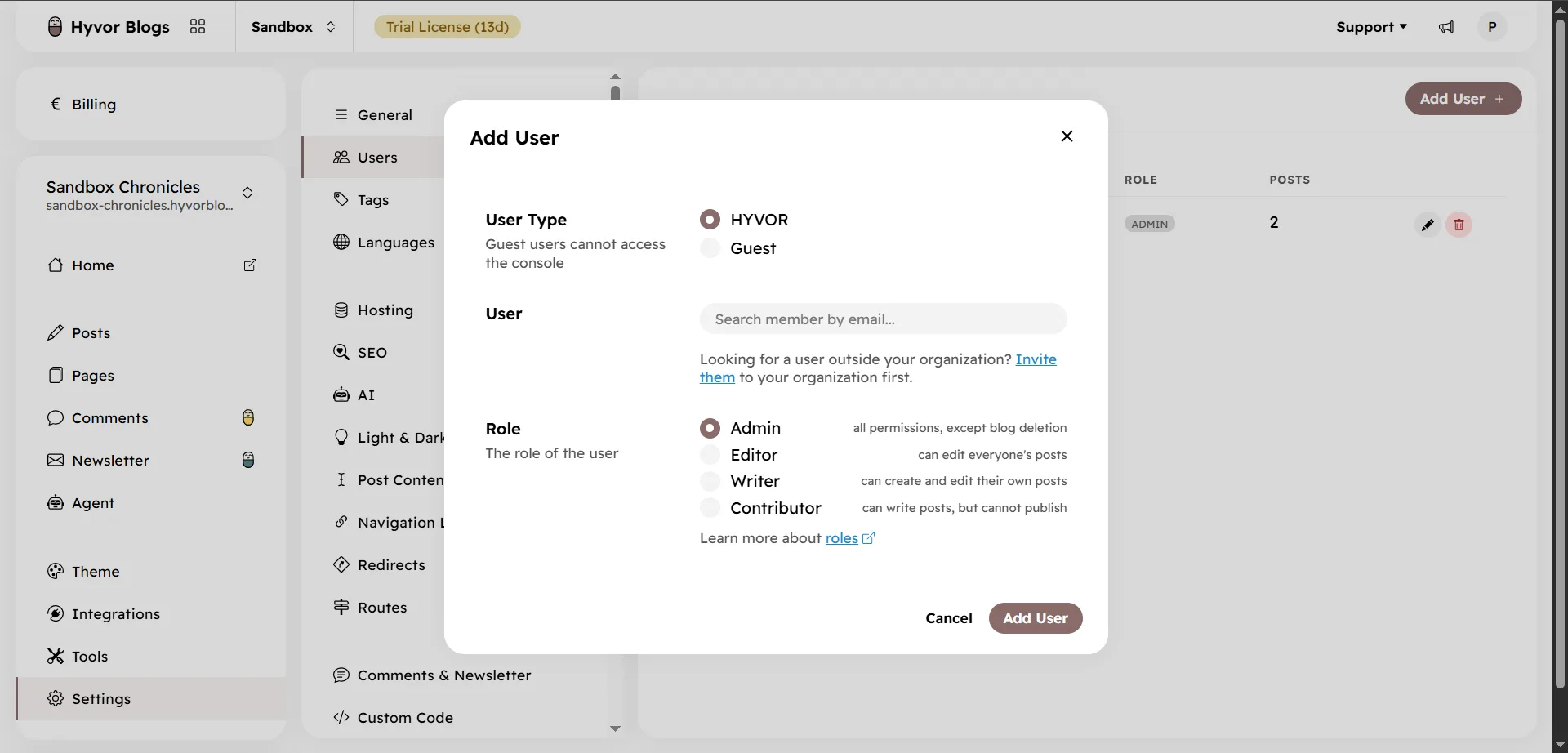
First, invite the person to your organization and pick an organization role: Admin, Manager, Member, or Billing. Then open the blog they need, go to Settings → Users → Add User, and give them a blog role:
Admin can do everything except delete the blog.
Editor can edit everyone's posts.
Writer can create and edit their own posts.
Contributor can write posts but can't publish them.
They only see the blogs you add them to. One thing to plan for: your plan's team member limit counts unique people across all your blogs, not per blog.
Since Hyvor Blogs 2.0, people can also edit the same post at the same time, and reviewers can suggest changes and leave comments right in the editor.
3. Choose where each blog lives
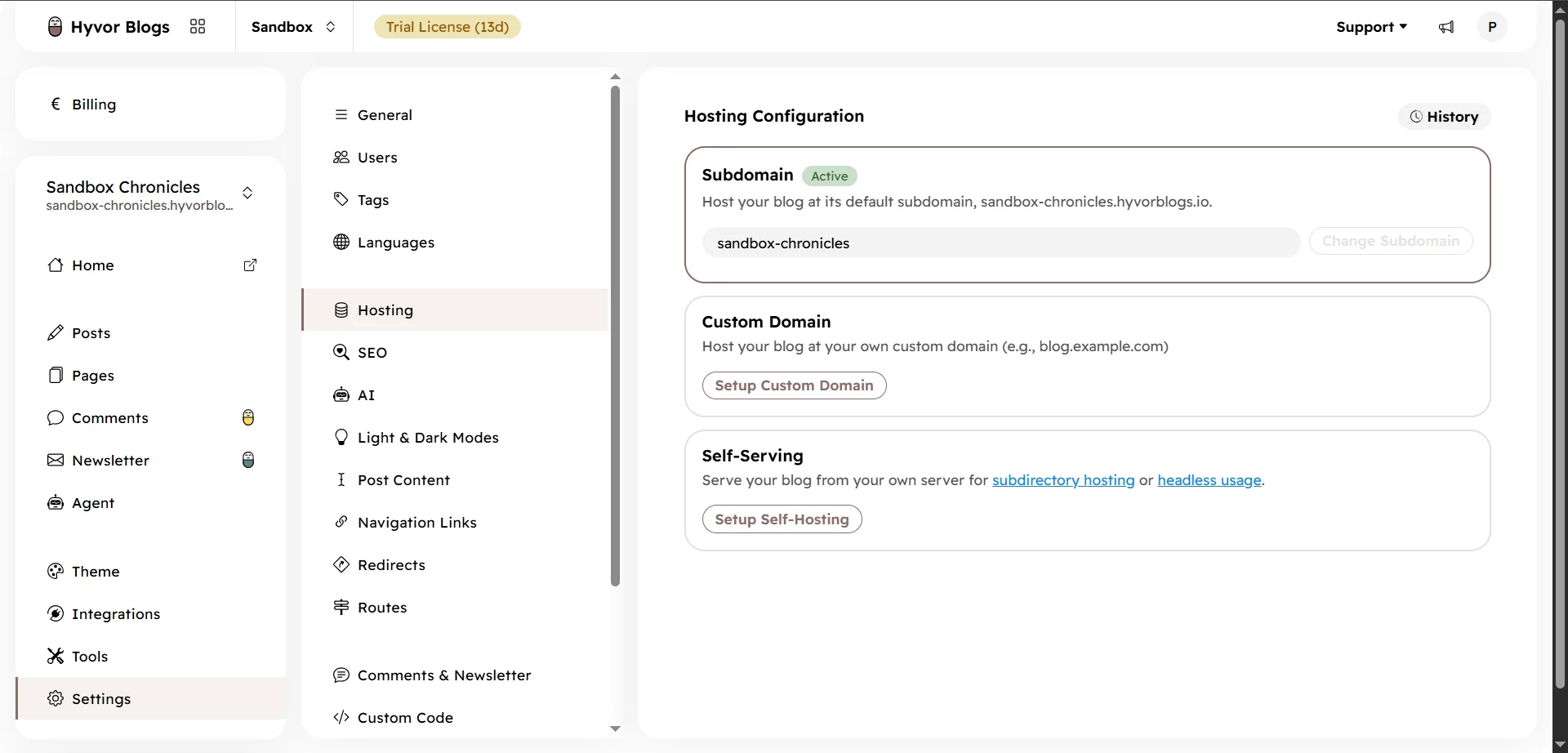
Settings → Hosting gives you three options per blog: the free subdomain, a custom domain, or serving the blog from your own site.
For a custom domain, click Setup Custom Domain, enter the domain, and choose a TLS certificate option. Automatic is the recommended option, and Hyvor Blogs handles the certificate for you, or you can bring your own by pasting a private key and a certificate chain. Then add a CNAME record (recommended) or an A record at your DNS provider, using the details in the custom domain guide. Compare that with Multisite domain mapping, where you point DNS, sort out an SSL certificate for each domain, and change the site address yourself, which WordPress's own docs call advanced administration.
If you'd rather have the blog at yoursite.com/blog, the subdirectory guide covers Docker, Cloudflare Workers, Next.js, Laravel, Symfony and plain reverse proxies. If your domain is already on Cloudflare, the guide calls Workers the easiest route, with no code to write.
4. Add languages instead of adding sites
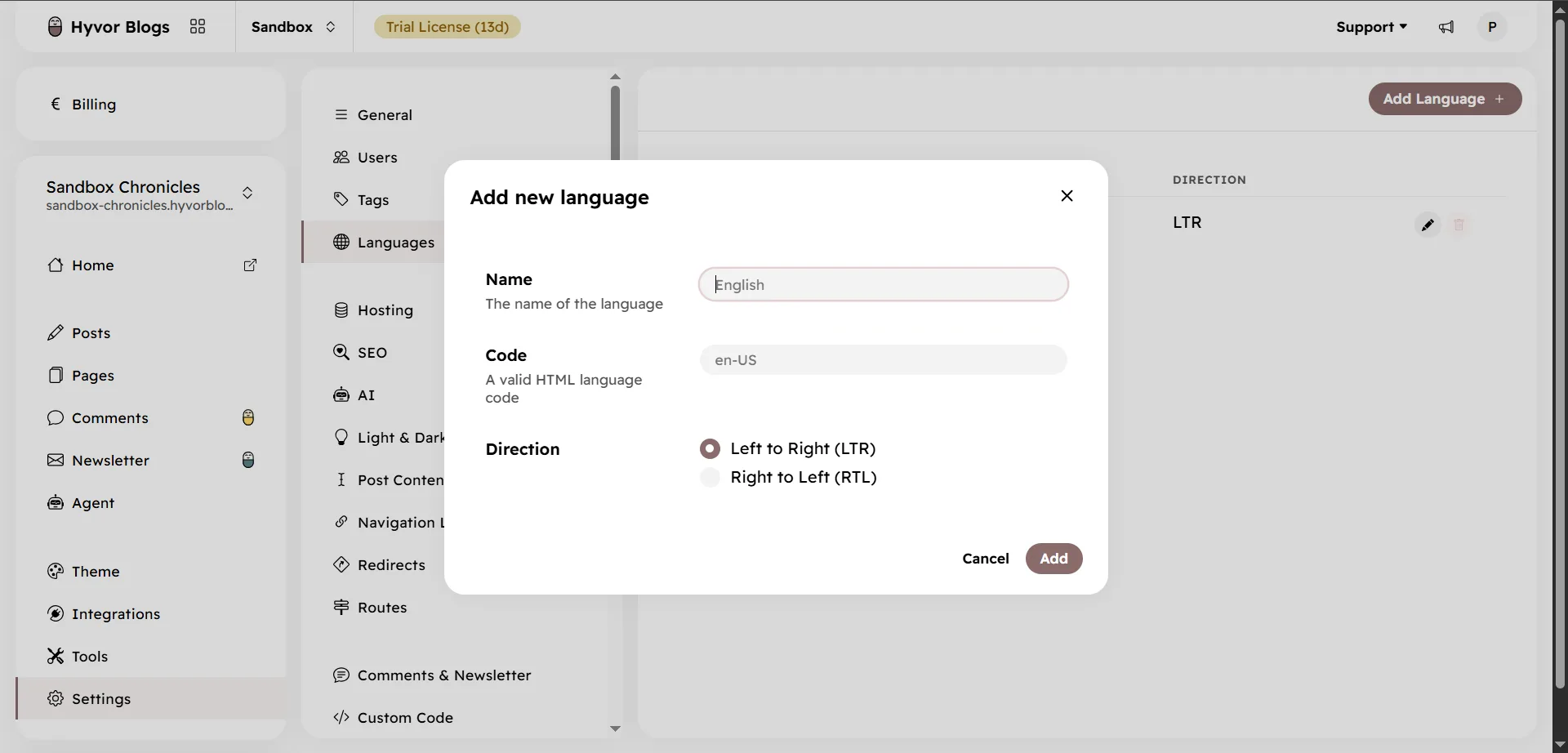
A common Multisite approach to a multilingual blog is one site per language, linked together with a plugin. In Hyvor Blogs, you add the language to the same blog: Settings → Languages → Add Language, then enter a name, a language code such as fr-FR, and the text direction.
Each post can then have a translated version. A French post lives at /fr/your-french-slug, and Hyvor Blogs adds the hreflang tags search engines use to link the versions together. There is more on the multi-language page.
5. SEO, comments and newsletters are already there
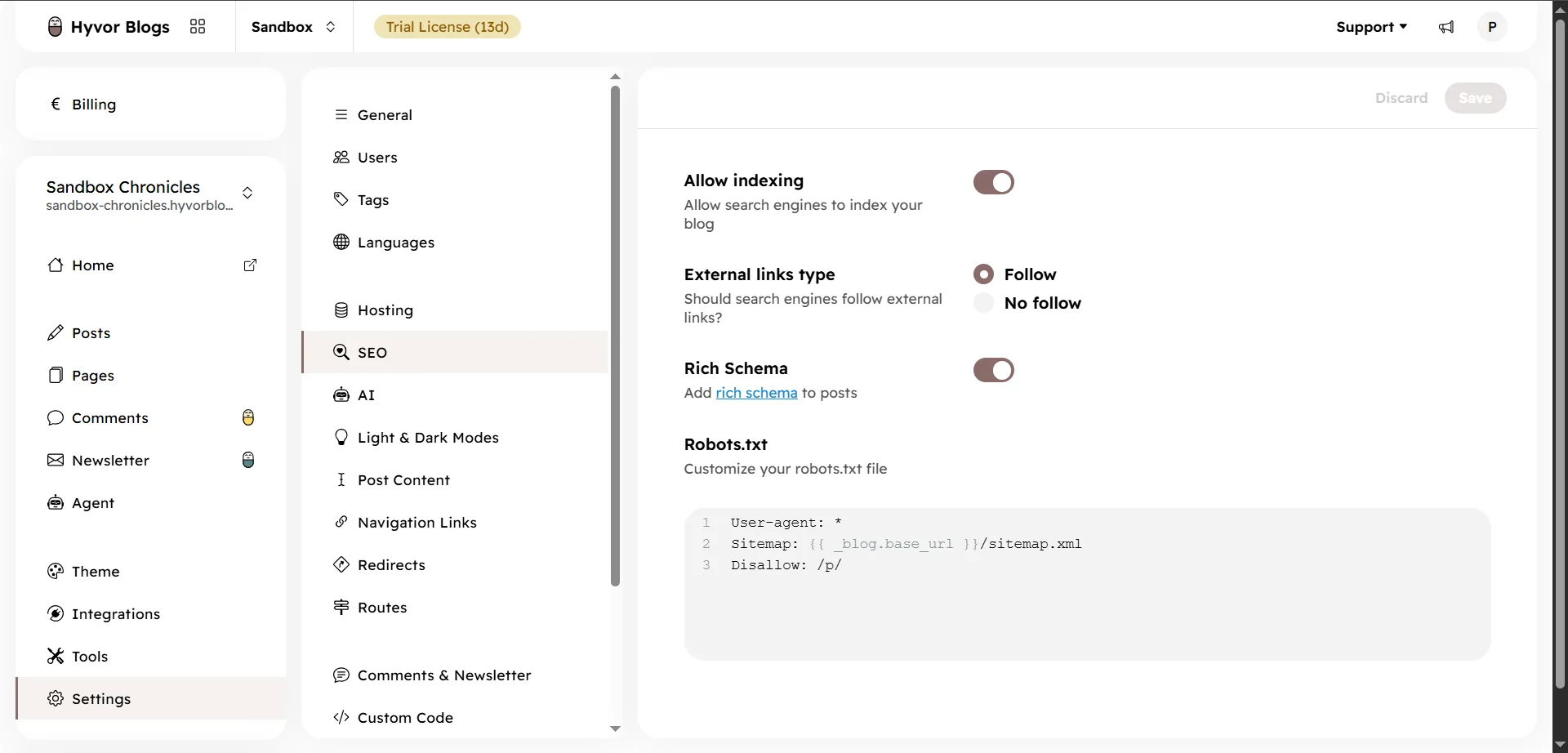
Under Settings → SEO you'll find the indexing switch, follow or nofollow for external links, rich schema, and an editable robots.txt that already points to your sitemap. There's no SEO plugin to install. SEO Analysis comes with the Starter plan and above, and Link Analysis with Growth and above.
Comments and newsletters come from our own products. Every plan includes a complimentary Hyvor Talk license for comments and a complimentary Hyvor Post license for newsletters, each with a monthly allowance that grows with the plan. Since Hyvor Blogs 2.0 you can moderate comments and send newsletter issues from the Console.
There's no caching plugin either. Pages are rendered on the first request, cached, and served from a global CDN, so there's nothing to tune. Platform updates are our job, and you can follow them on the status page.
Self-hosting: one instance, many blogs
If "we run it on our own server" is the reason you chose WordPress, that option exists here too. Since version 2.0 in September 2026, Hyvor Blogs is open source under AGPLv3 and runs with Docker Compose.
The self-hosted setup is the closest match to what Multisite promises: one installation serving unlimited blogs, each on its own custom domain, with TLS certificates handled automatically. It runs behind Nginx, Traefik, or any other reverse proxy. The difference is that there are no plugins to keep compatible across the network. The deployment guide has the steps.
Self-hosting doesn't lock you in either. You can move to the cloud version at any time, and you can export your content whenever you like.
Apart from Cloud-only features, a self-hosted install has the same features as Cloud. The Hyvor Talk and Hyvor Post integrations are Cloud-only, so on a self-hosted install you paste an embed code from Hyvor Talk, Hyvor Post, or another service into Settings → Comments & Newsletters.
What it costs
On the hosted version, at the time of writing (check the current pricing):
Plan | Price | Blogs | Team members | Media storage |
|---|---|---|---|---|
Personal | €5/month, billed yearly (€50/year) | 1 | 1 | 1GB |
Starter | €12/month | Unlimited | 5 | 5GB |
Growth | €40/month | Unlimited | 15 | 150GB |
Premium | €125/month | Unlimited | 50 | 500GB |
Custom domains, multi-language support, and the Hyvor Talk and Hyvor Post licenses come with every plan. There are no pageview or bandwidth limits, and the 14-day free trial doesn't ask for a card.
The Hyvor Talk and Hyvor Post licenses come with a monthly allowance: 10k Hyvor Talk credits and 5k newsletter emails on Personal, 25k and 15k on Starter, 100k and 50k on Growth, and 250k and 150k on Premium. Paying yearly takes two months off, which puts Starter at €120 a year, Growth at €400, and Premium at €1,250.
The AI Agent and SEO Analysis start at Starter, and Link Analysis at Growth. For larger organizations, there is an Enterprise plan with custom limits, OIDC SSO, priority support, and a custom SLA.
For comparison, a Multisite network runs every site on the same server, and Kinsta notes that plugin licensing can add cost in either setup: some plugins need a pricier license for Multisite, and others need one license per site on separate installs.
When Multisite is still the better choice
Hyvor Blogs is built for blogs. Stay on WordPress Multisite if:
Your sites need more than blogging, such as a store, memberships, or courses, and those come from WordPress plugins.
You run a platform where users create their own sites on demand.
Your network depends on custom WordPress code that has no equivalent elsewhere.
You already run a uniform network with someone dedicated to maintaining it, and it's working. Moving always has a cost.
We say the same on our WordPress alternatives page: if you need a platform that does much more than blogging, WordPress may suit you better.
When Hyvor Blogs is the better fit
Hyvor Blogs fits best when the real requirement is several independent blogs managed from one place, not one shared WordPress environment.
Agencies and freelancers with client blogs. Pantheon's documentation lists agencies running several customers on one installation as a use of Multisite it doesn't support on its platform, and Kinsta says putting client sites in one network can be a bad idea. In Hyvor Blogs, each client's blog has its own domain, theme, and team. Keep an eye on the team member limit, which counts every unique person across all the blogs.
Companies with several brands or publications. Each one can have its own domain, languages, and branding, while one organization and one plan cover them all.
Publishers writing in several languages. Languages are added to a blog, not built as separate sites.
Developers who want to self-host. One Docker Compose install serves many blogs, and the Data API and Delivery API let you run a blog headless with your own front end.
Migrating from WordPress Multisite
Looking to migrate from WordPress Multisite to Hyvor Blogs? Our team can handle the entire migration for you, including content and media transfer and help with DNS and SEO setup, all for free. Just contact us, and we'll take care of the rest.
Frequently asked questions
Is Hyvor Blogs a replacement for WordPress?
Not for everything. It's built for blogs. If you also need a store, memberships, or plugins from the WordPress ecosystem, WordPress is still the better fit.
Can I run multiple blogs with Hyvor Blogs?
Yes. From the Starter plan up, one organization can hold unlimited blogs. The Personal plan is limited to one blog. On a self-hosted install, one instance serves unlimited blogs.
Can each blog have its own domain?
Yes, and custom domains are included on every plan. You add the domain in Settings → Hosting and create a CNAME or A record. Hyvor Blogs handles the TLS certificate.
Can I migrate a WordPress Multisite network to Hyvor Blogs?
Our team handles WordPress migrations for free, including content and media. Each blog in a Multisite network is a WordPress site, so contact us with the blogs you want to move, and we'll take it from there. For a single site, you send us a WordPress export file and your wp-content/uploads folder; the import guide has the exact steps.
Can I self-host Hyvor Blogs?
Yes. It's open source under AGPLv3 and runs with Docker Compose. The deployment guide has the steps.
Do I need Multisite to manage several blogs?
No. You can run separate installs with a management tool, or use a platform built for multiple blogs. The requirements table earlier in this post shows which needs really call for Multisite.
What is the difference between Multisite and separate WordPress installs?
Multisite puts every site in one WordPress installation, with one database and one pool of plugins. Separate installs keep each site independent and give up the single dashboard. Kinsta's comparison goes through the trade-offs.
Conclusion
WordPress Multisite and Hyvor Blogs both let you run several blogs from one place. Multisite does it by putting every blog in one WordPress installation, so they share core files, plugins, themes, users, and a database. Hyvor Blogs does it with an organization of independent blogs, each with its own settings, theme, team, and domain, and with the features you would otherwise add as plugins built in.
If your sites need to share a plugin set, or you want people to create sites on demand, Multisite is built for that. If you mostly want several blogs managed together, you may be running more infrastructure than you need. Start a free trial, create two blogs side by side, and see whether the setup fits how your team works.

Comments