Editor
Hyvor Blogs comes with a rich text editor that supports inline styles and blocks.
Inline Styles
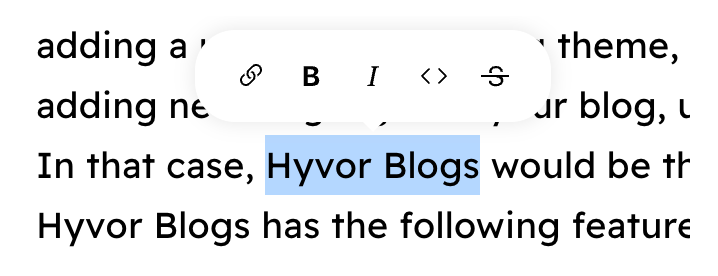
To add inline styles to text, select the text. A popup will be shown with the available options. Click on the inline style you want to add. The following inline styles are supported.
- Bold
- Italic
- Strikethrough
- Inline Code
Links
Adding & Removing Links
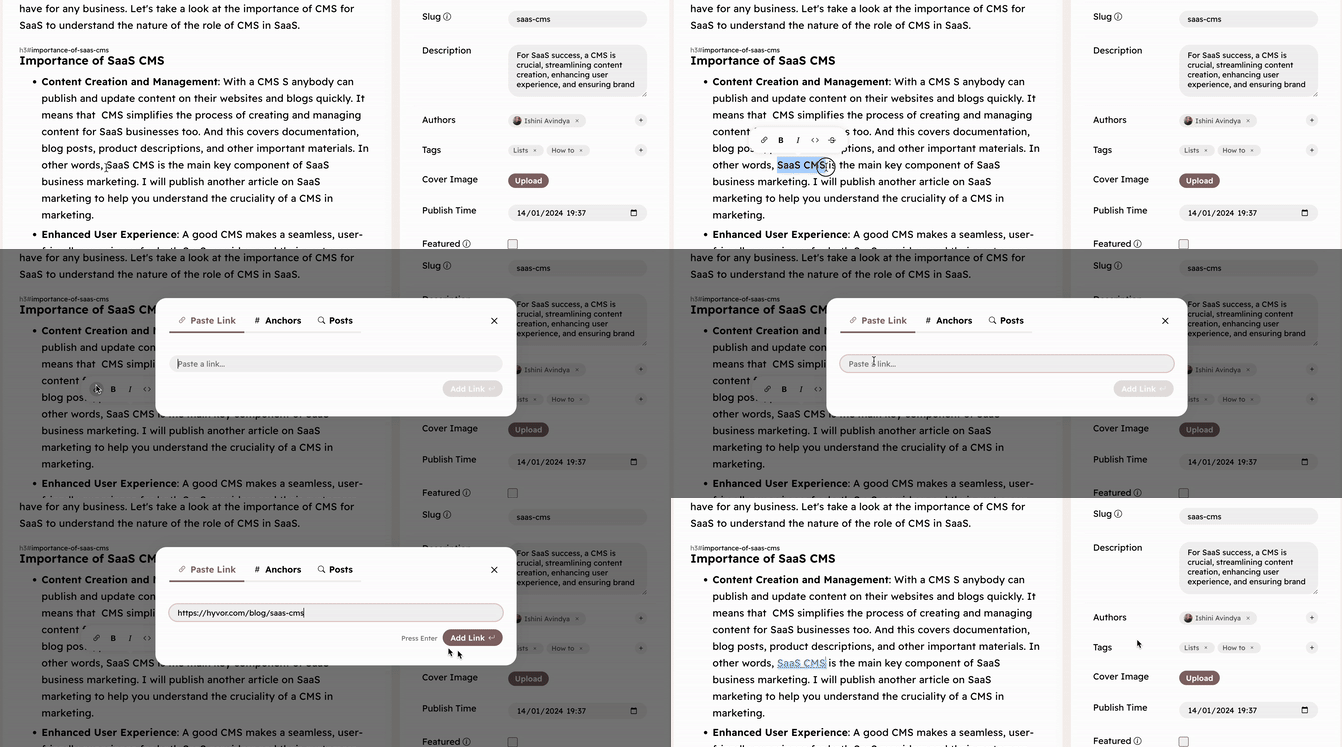
Adding links is similar to adding inline styles. Select the text you want to link and then click the Link icon. Next, paste the URL in the input and hit Enter.
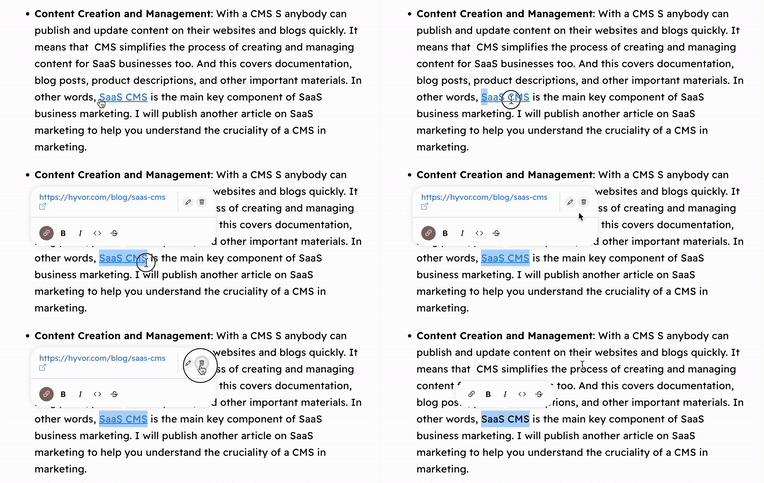
To remove a link, select the text and click on the delete icon.
Links with Anchors
To add anchor links easily, follow the steps below.
- Select the text you want to link and click on the link icon
- Click on “Anchors”
- Choose the anchor and click on it
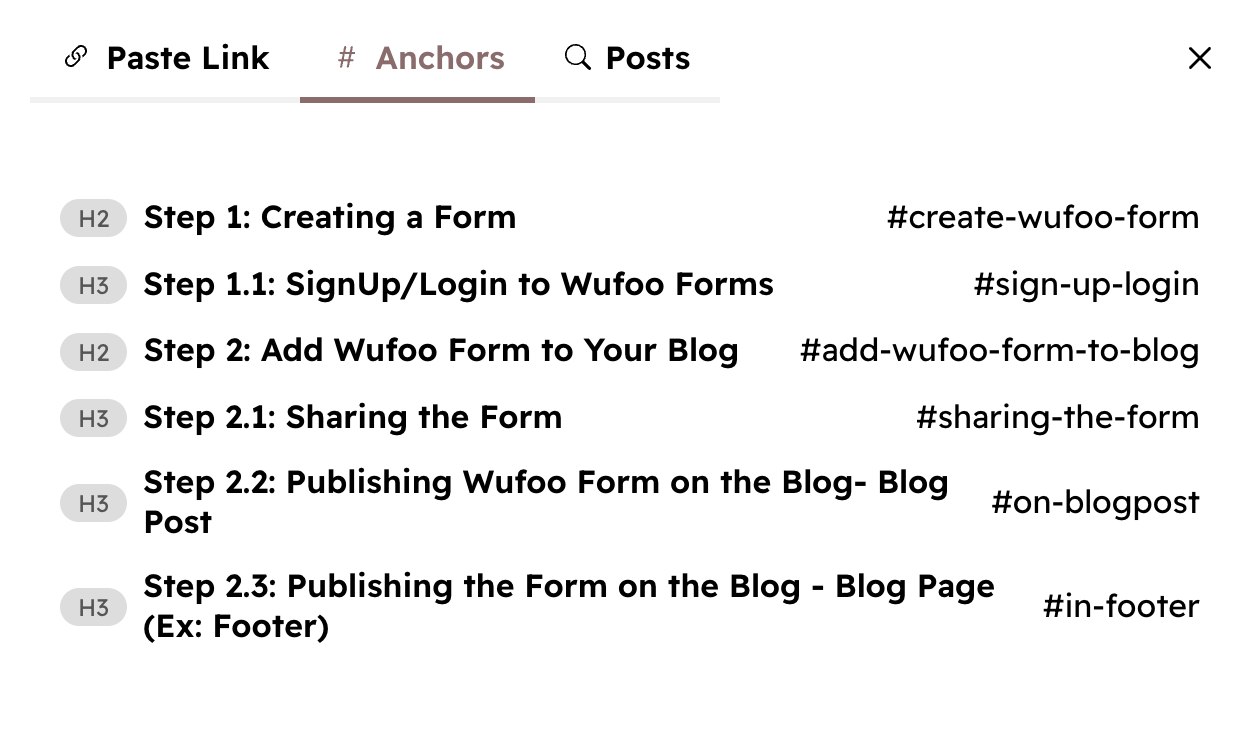
Anchor list contains all the headlines of your content showing whether they have IDs or not.
Linking Posts
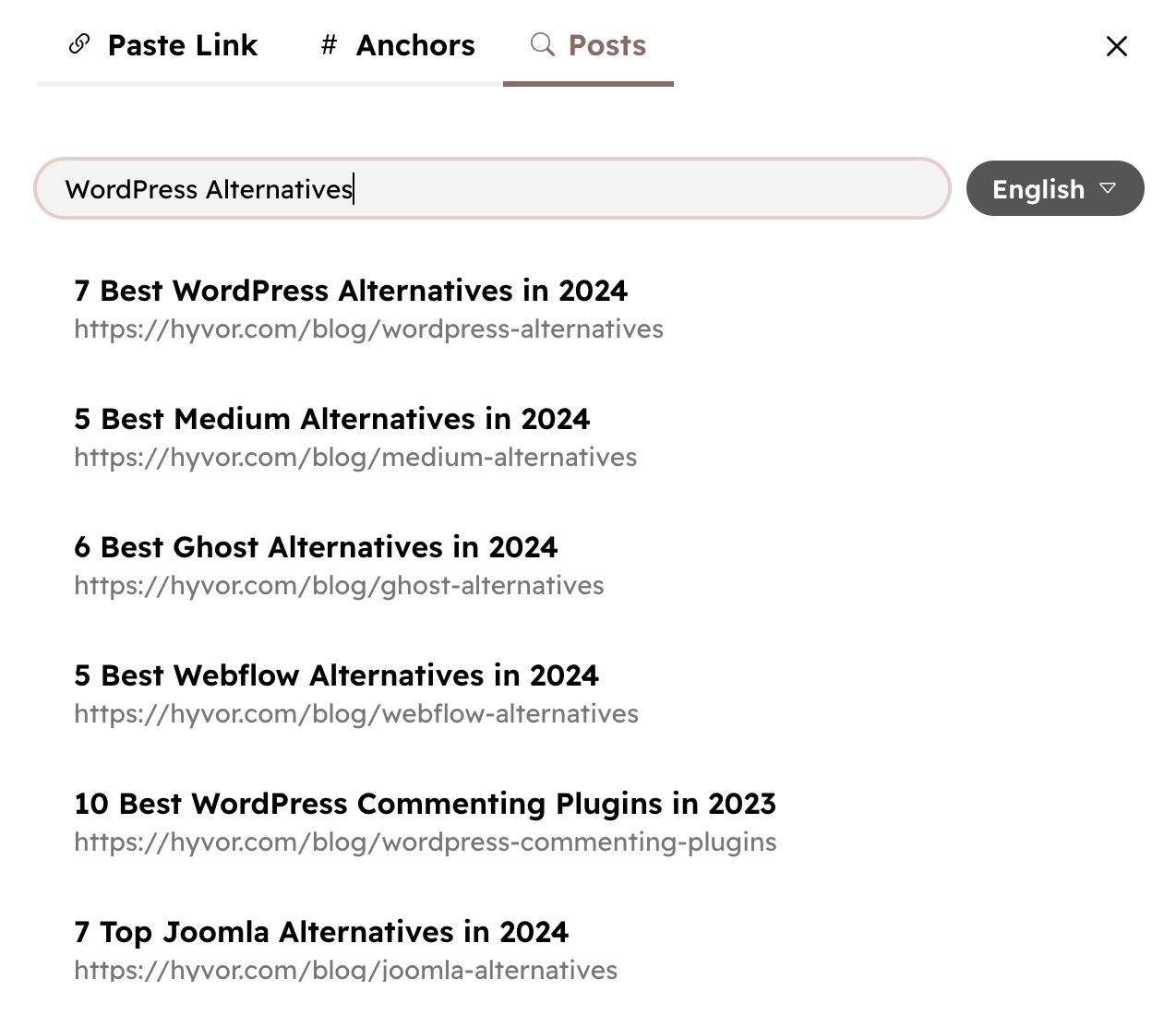
To link to a post of the same blog, follow these steps.
- Select the text you want to link and click on the link icon
- Click on “Posts”
- Search for the post by typing the title, and click on it
Markdown for Inline Styles
You can also use Markdown shortcuts to create inline styles.
[Anchor](https://example.com)**text***text*~~text~~^text^~text~Blocks
The term “blocks” is used to refer to block-like elements you can add to posts, such as paragraphs and blockquotes. Paragraphs are the basic blocks. You can create a paragraph by pressing Enter anywhere inside the editor.
To add other blocks, use the slash command: type slash (/) in a new line to open the blocks list. Use the mouse or up/down arrows to navigate through the list.

Hyvor Blogs supports the following blocks.
- Paragraph
- Divider
- Heading
- Lists
- Quote
- Callout
- Image
- Embed
- Link Bookmark
- Code Block
- Custom HTML/Twig
Headings
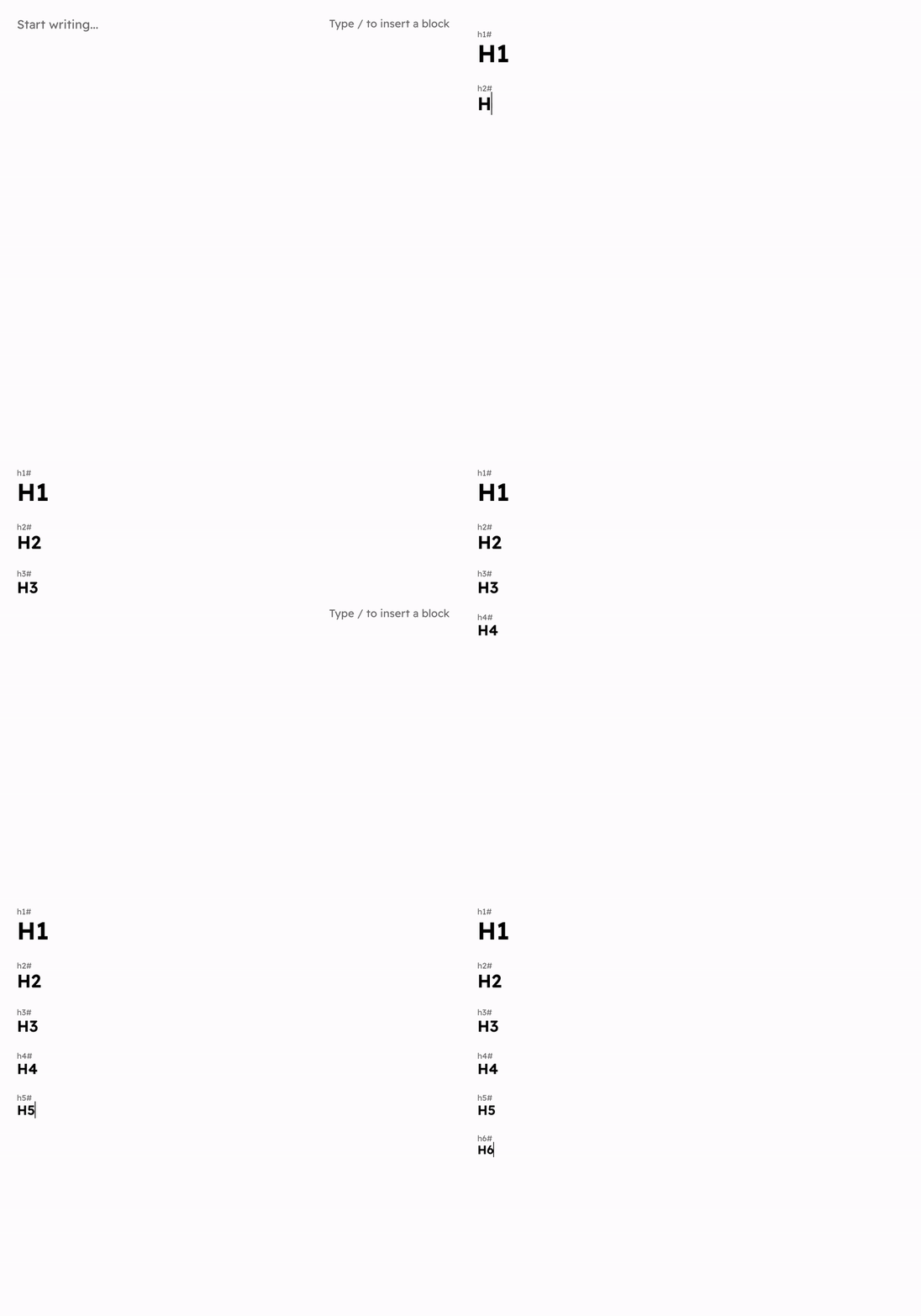
HB supports headings from <h1> to <h6>. The slash command only provides two options: Large (h2) and Medium (h3). Other headings can be added using Markdown syntax in a new line.
#+spaceforh1##+spaceforh2###+spaceforh3- …
Please note that the reason to give Large Heading uses <h2>is that <h1> is reserved for the post title in your theme. However, you may use h1 within
your posts if needed.
Heading IDs
There are two ways to add heading IDs.
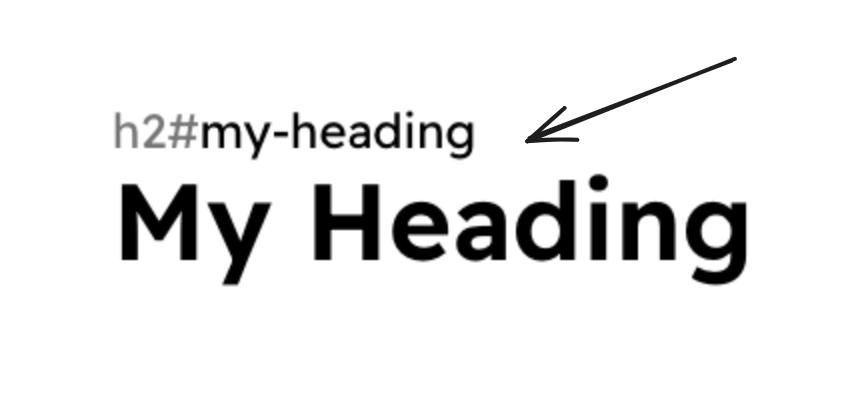
- Focus the ID input at the top of the heading and type the ID there.
- Type Markdown-style heading ID (
{#heading-id}) at the end of the heading.

Lists
* + space or - + space1. + space, 2. + space,etc.EnterShift + TabTab
Quote
Quote block is usually used to quote something, while it is also generally used make text stand out. You can create a Quote block via the slash command or by entering > + space in a new line (Markdown syntax).
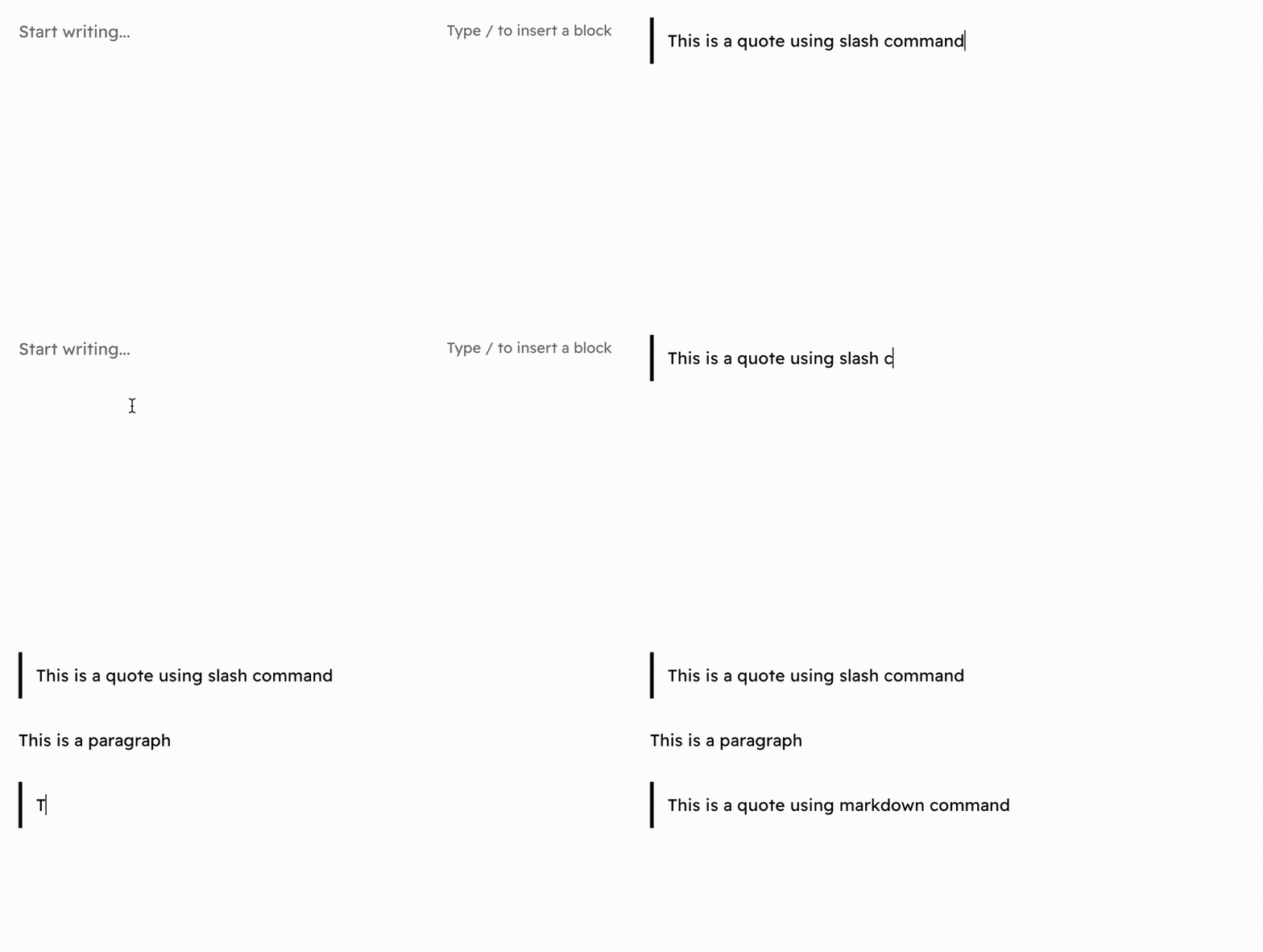
You can get out of the Quote block by clicking Enter in a new line within the Quote block.
Callout
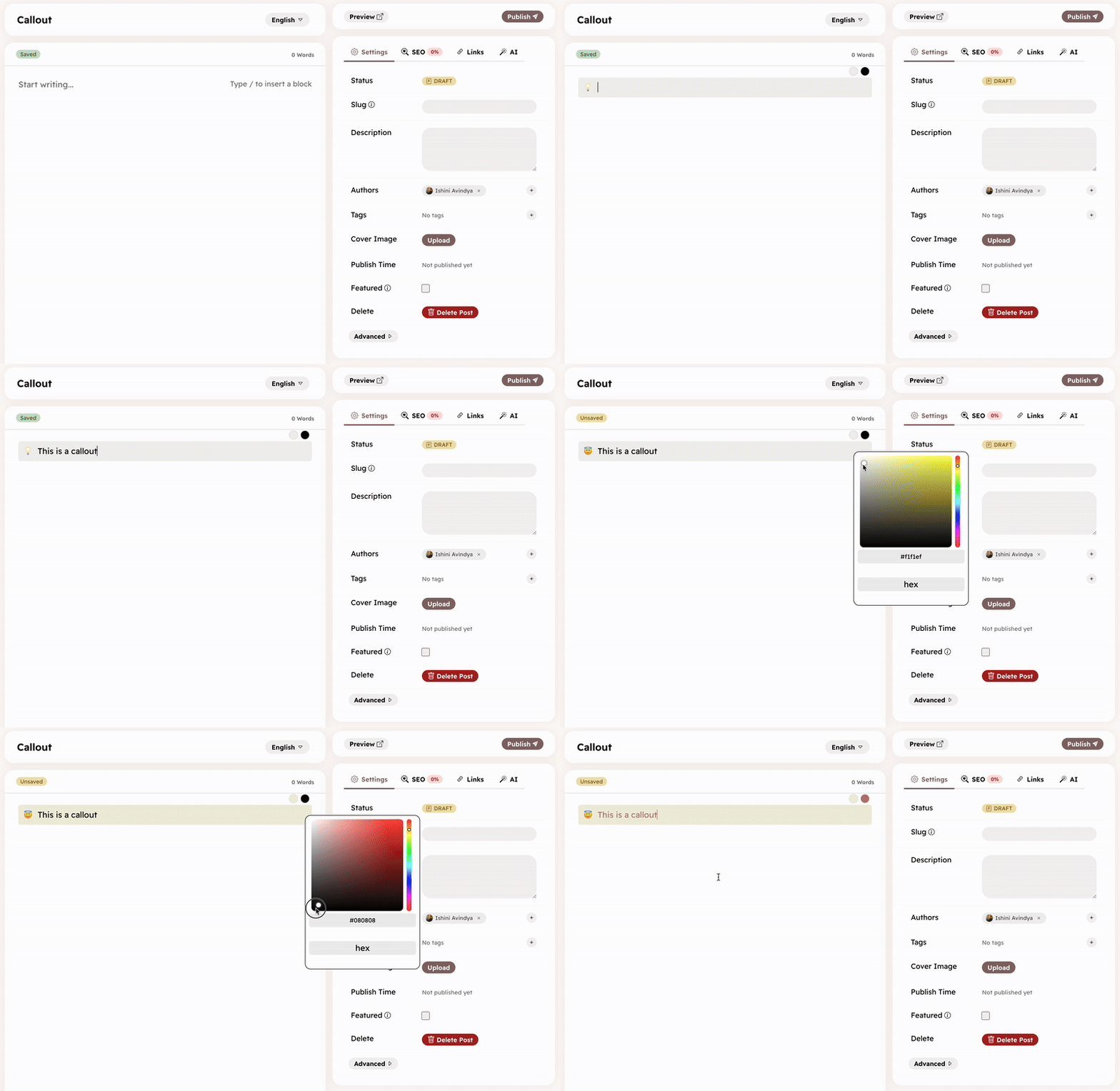
Callout block is used to write text that stands out from other content in the post. You can set an emoji and background/font colors for each callout block.
Image
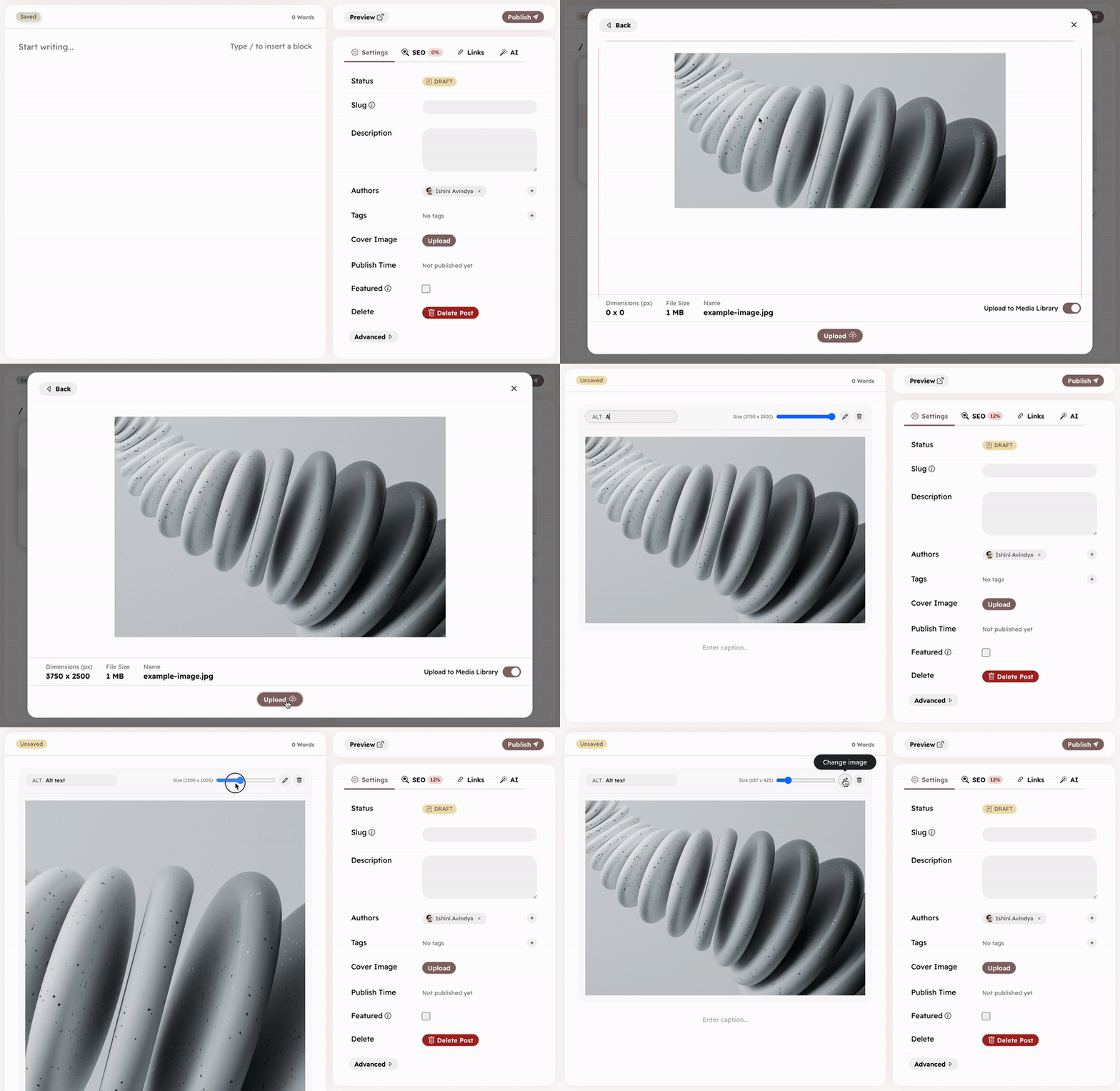
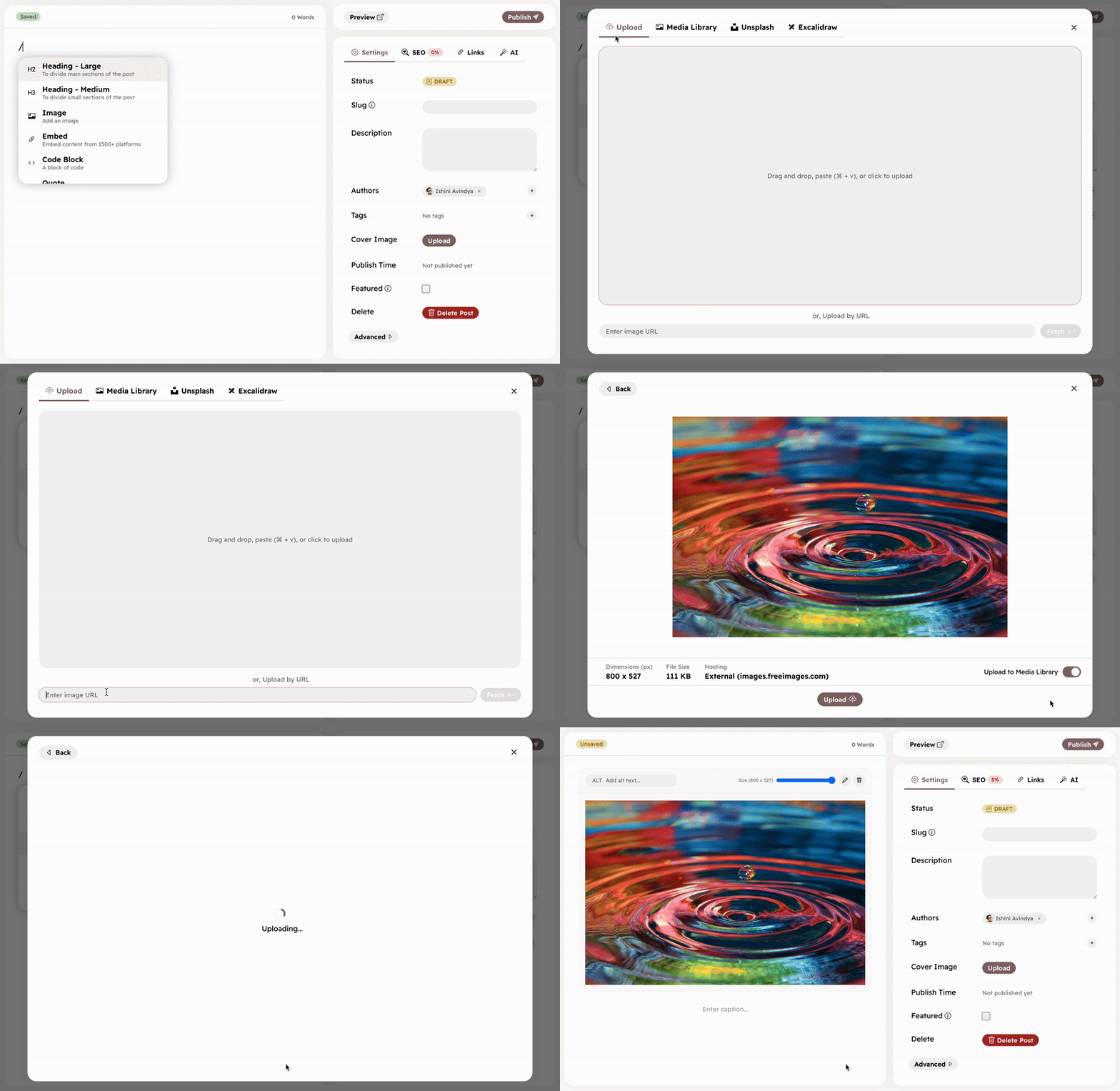
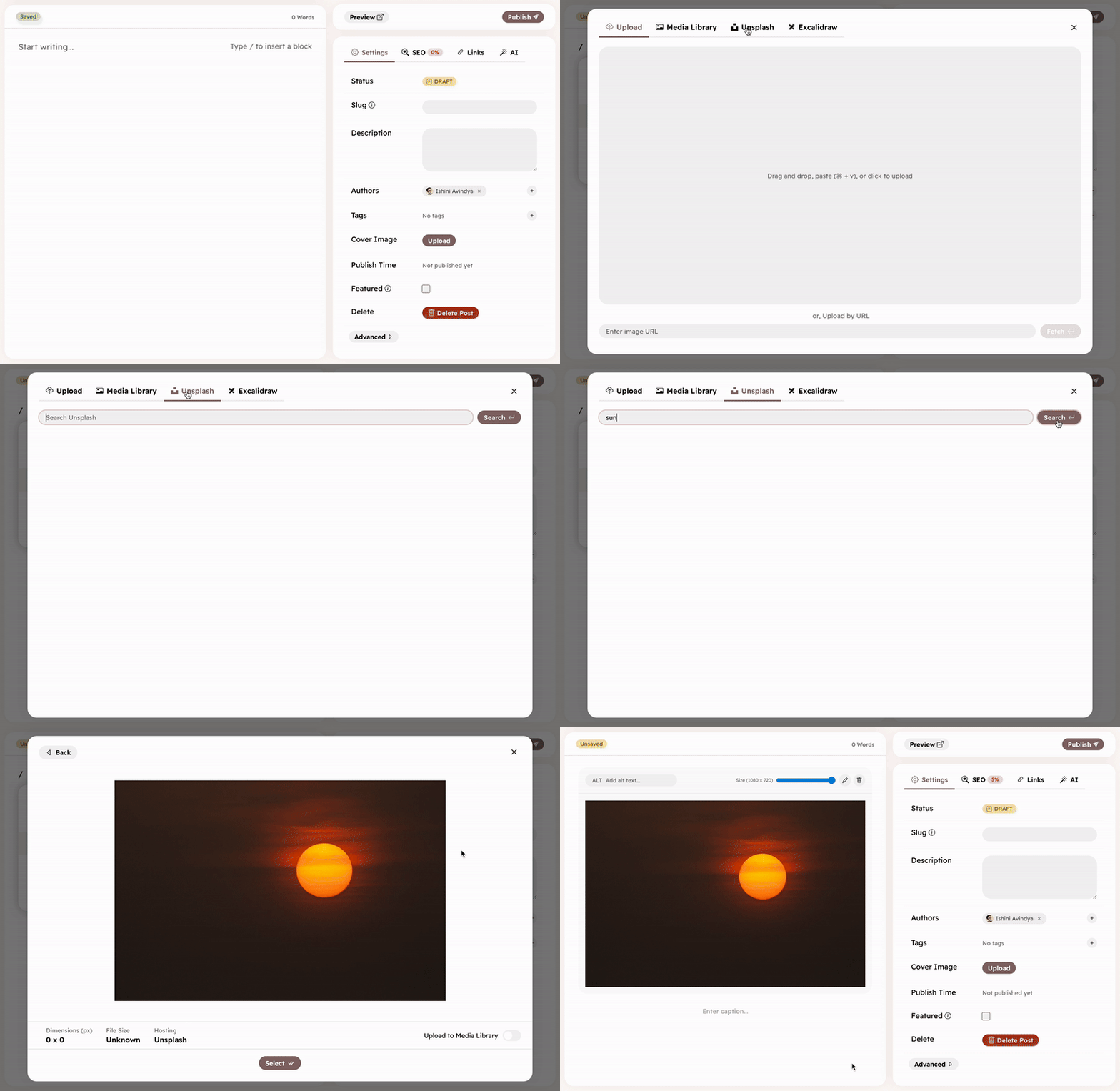
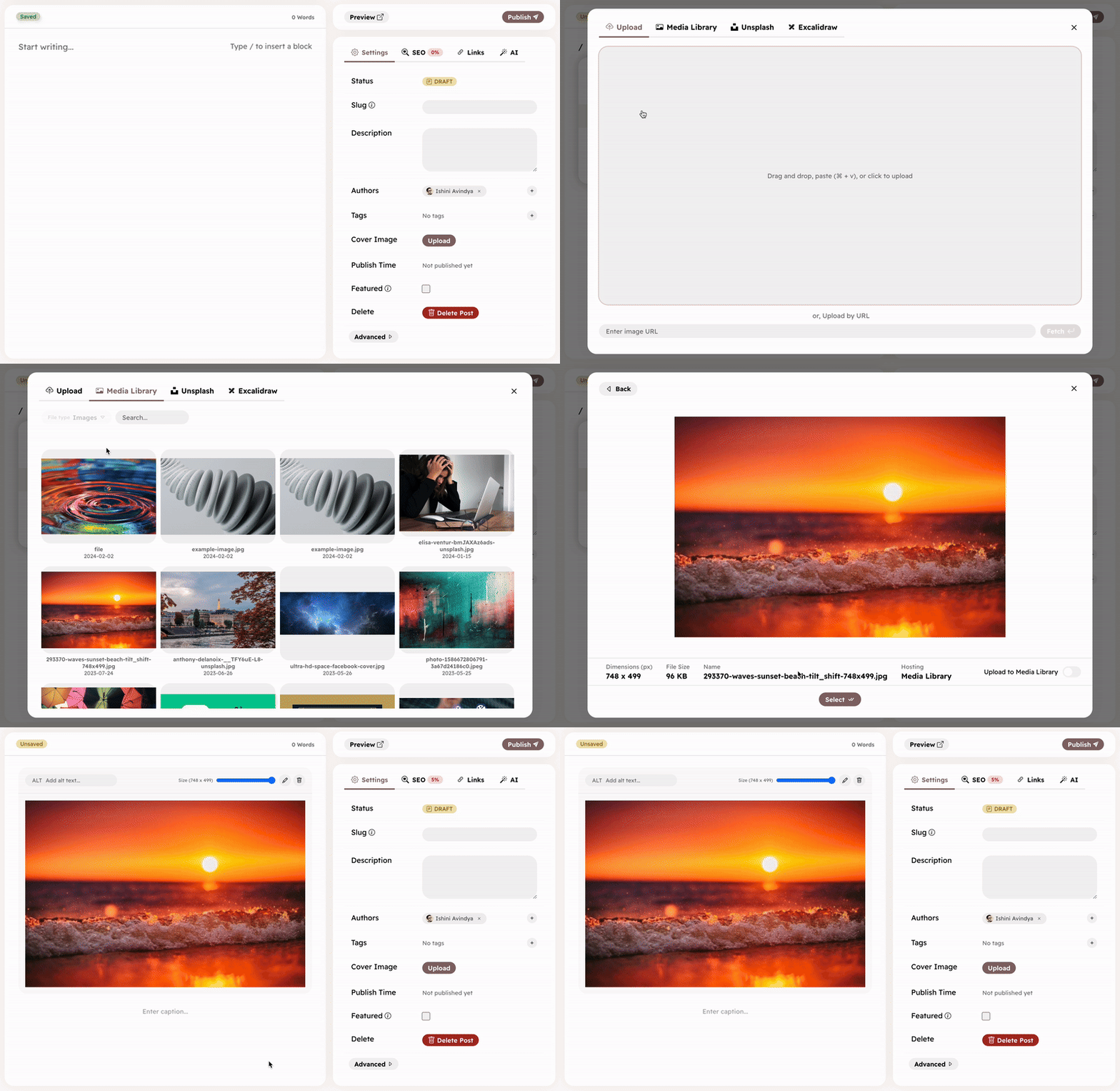
To add images, use slash command (/ in a new line), and choose Image. You can add an image in one of the following ways:
- Upload from your device
- Upload from a URL
- Choose from Unsplash
- Choose from Media Library
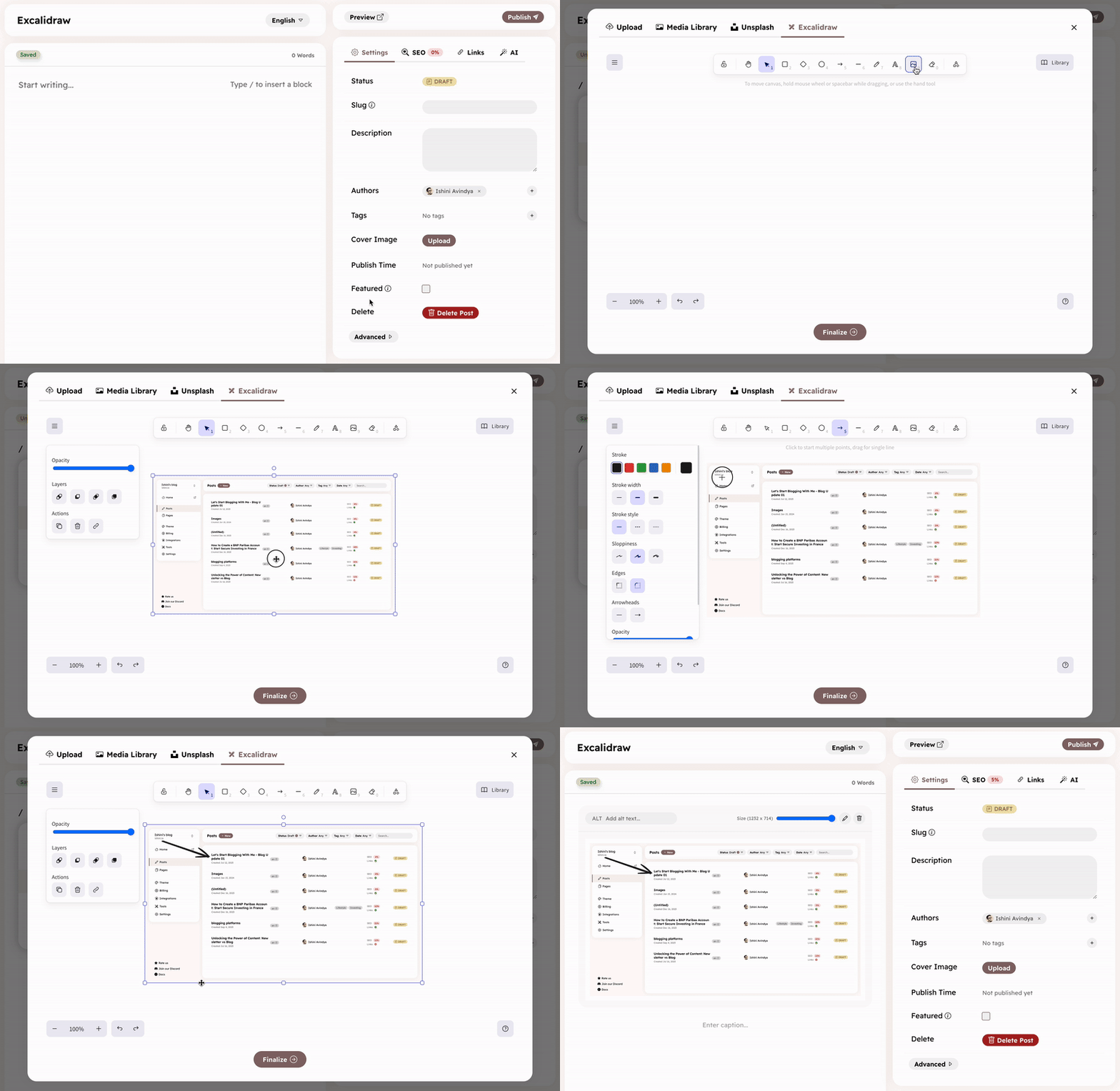
Excalidraw
Excalidraw is a tool to create diagrams and drawings. You can add Excalidraw drawings/editings in your posts.
For uploads, max file size is 50MB. The following formats are supported.
- PNG -
.png - JPEG -
.jpg,.jpeg,.jfif,.pjpeg,.pjp - GIF -
.gif - APNG -
.apng - AVIF -
.avif - SVG -
.svg - WebP -
.webp
Image uploaded from device or a URL are automatically added to your media ensuring their availability without depending on an external service. However, images added via Unsplash are hosted at unsplash.com and not uploaded to blog media.
The image node also allows you to:
- Add a caption
- Add ALT text
- Scale the image
Embed
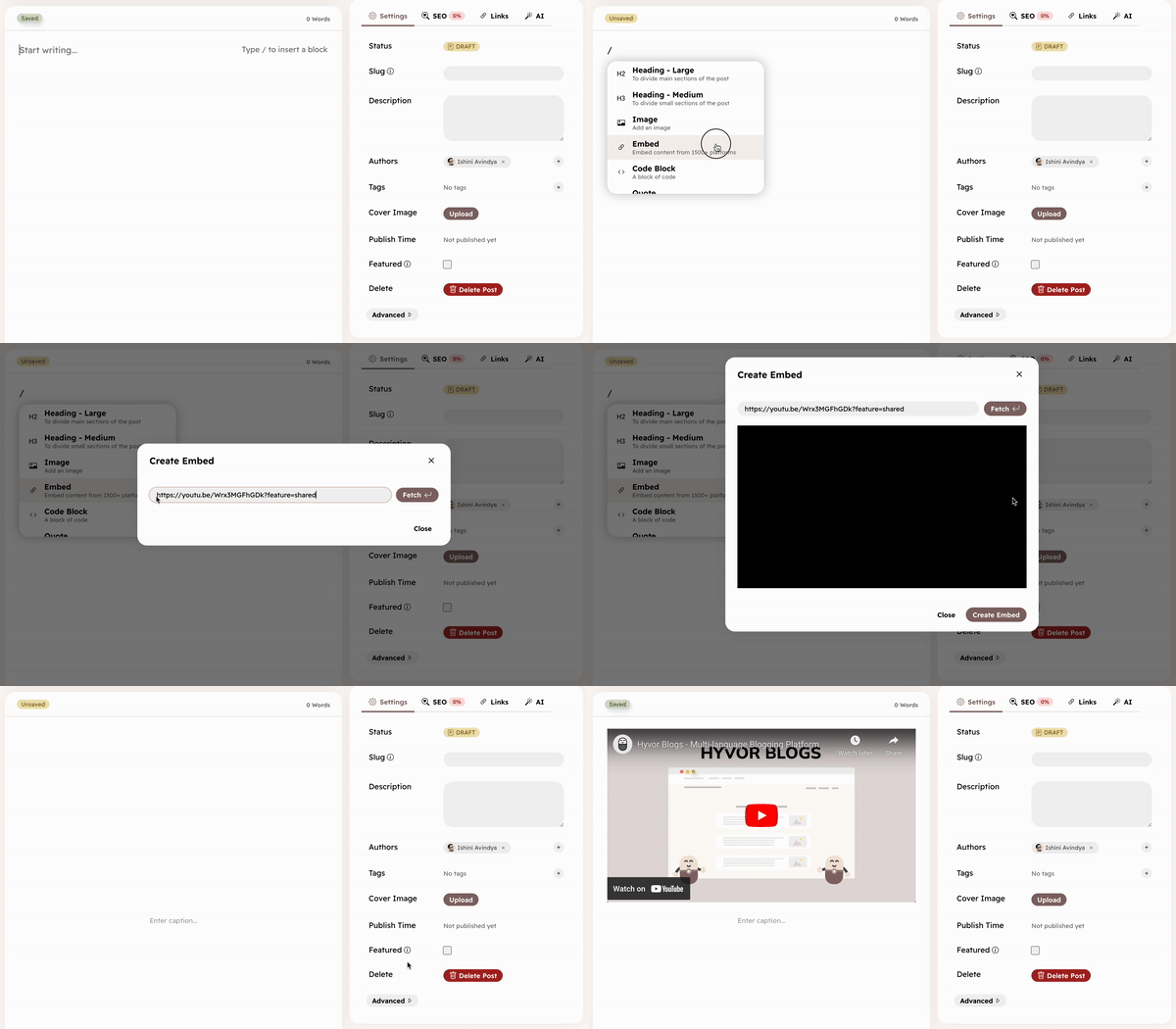
Hyvor Blogs supports embedding content from Youtube, Twitter, Instagram, Facebook, and other platforms. Hyvor Unfold is used under the hood to support various platforms. You can add an embed using the slash command (/ in a new line → Embed). Then, paste the URL you would like to embed in the input box.
See supported platforms.
Link Bookmark
You can use Link Bookmark block to add a rich link previews to your posts. To insert a link bookmark, type / in a new line → Link Bookmark. Then, paste the URL you would like to embed in the input box and press Enter. Hyvor Blogs will generate a rich preview of the link using OG tags and other metadata.
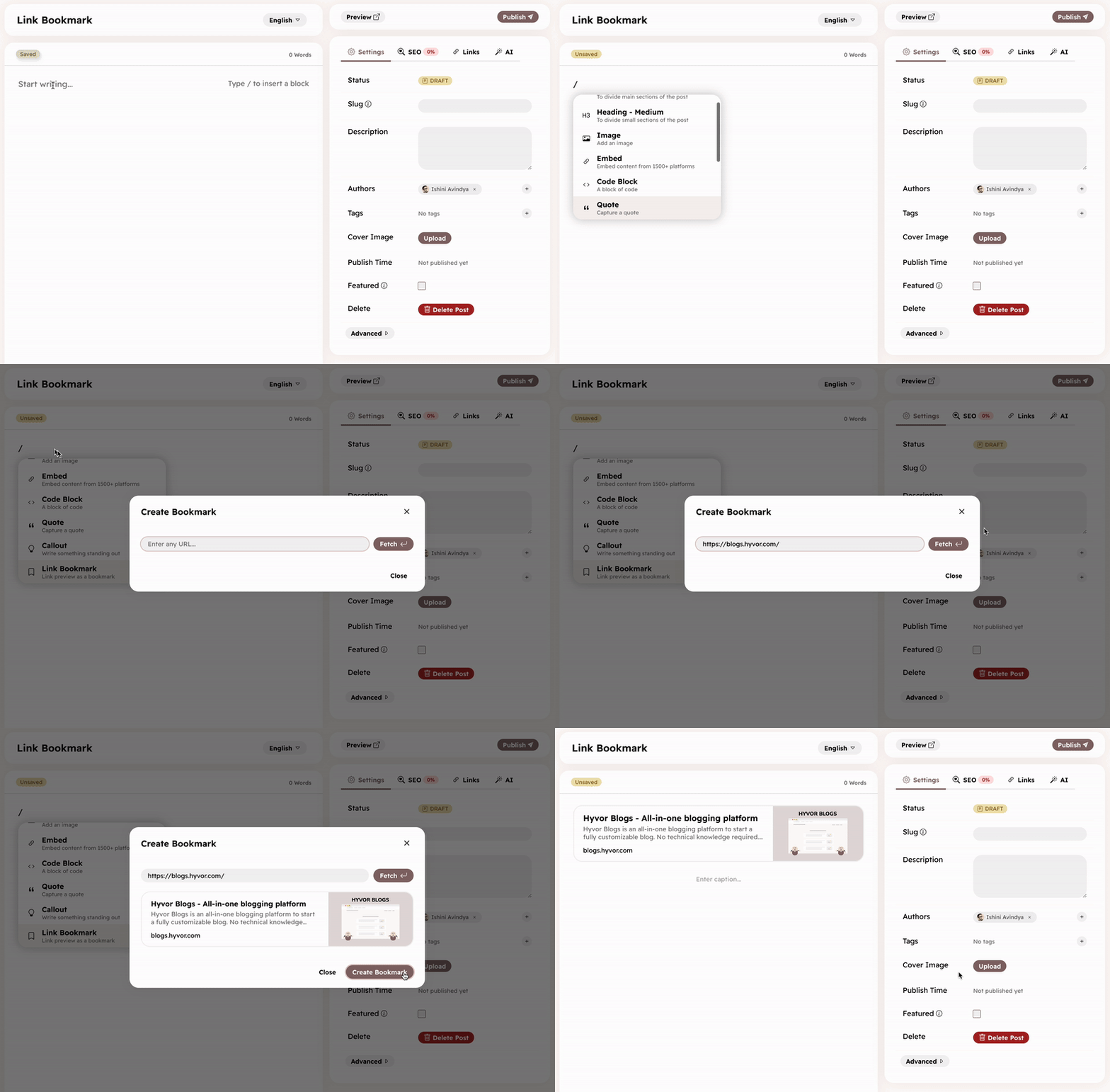
The URL you enter should be publicly accessible to generate a preview. For example, you cannot generate link bookmarks for private social media posts.
Code Block
You can add code blocks in two ways:
/in a new line → Code Block- Type
```langor```js(with language code) in a new line and pressEnter
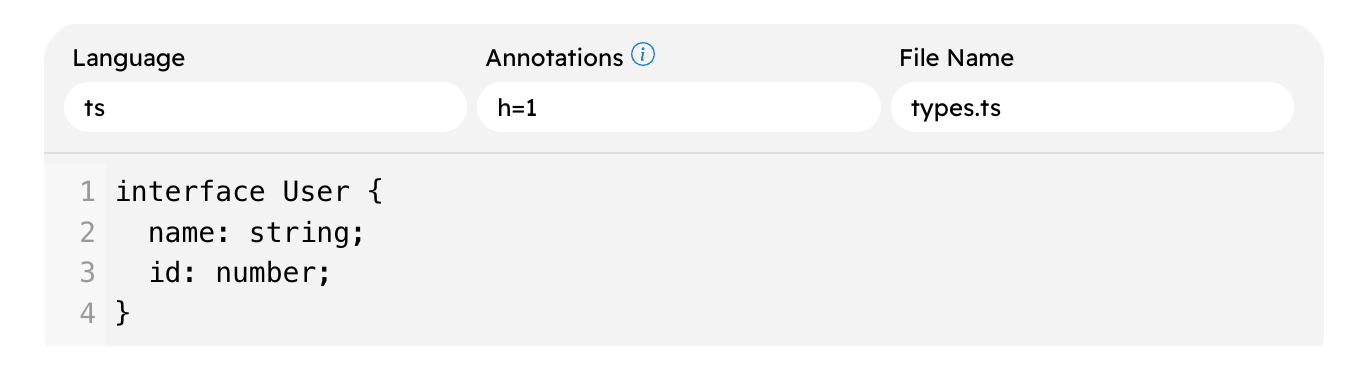
See Syntax Highlighting to learn more about supported languages, supported themes, and using annotations.
Custom HTML/Twig
The Custom HTML/Twig block allows you to add custom HTML or Twig code to your posts. You can use this to add custom elements to your posts. For example, you can add a custom form, a custom widget, etc. You can use Twigvariables in the code.