Styles & Colors
Hyvor Talk is designed to be customizable. All embeds use the styles/colors you set in Console → Settings → Appearance.
1. Palettes (Light & Dark)
Hyvor Talk makes it easy to set up two color palettes for light and dark themes. If your website only has one theme, simply use the light palette and ignore the dark palette.
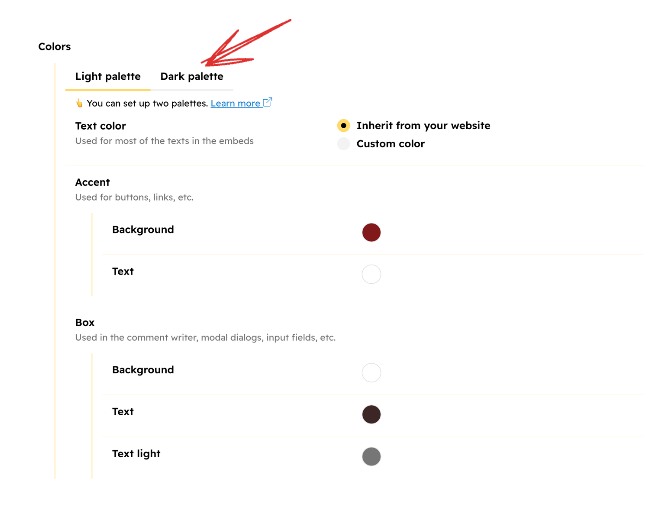
After you have set up the two palettes, there are two ways to choose which one to use in the embeds:
- From the Console (static)
- From the Embed (dynamic)
From the Console
The easiest way to choose a default color theme is from the Console setting.

From the Embed
All embeds support a colors attribute to set the color theme. Using this is preferred if
you want to dynamically set the color theme.
<hyvor-talk-comments colors="dark"></hyvor-talk-comments>OS Theme
Setting colors="os" will automatically set the color theme based on the user's operating
system's theme.
<hyvor-talk-comments colors="os"></hyvor-talk-comments>Theme Switch Button
If you have a theme switch button on your website, you will need custom Javascript to instruct Hyvor Talk to change the color theme when the user clicks on the button. Here's a hypothetical example (note that this code highly depends on your website's structure):
const button = document.querySelector('#theme-switch-button');
const comments = document.querySelector('hyvor-talk-comments');
button.addEventListener('click', () => {
	const colors = button.classList.contains('dark') ? 'light' : 'dark';
	comments.setAttribute('colors', colors);
});
2. CSS Variables
When an embed is loaded, Hyvor Talk will convert the colors you set in the Console to CSS variables as shown below:
:root {
	/* colors */
	--ht-color-text: #000000;
	--ht-color-accent: #000000;
	--ht-color-accent-text: #000000;
	--ht-color-box: #000000;
	--ht-color-box-text: #000000;
	--ht-color-box-text-light: #0000000;
	--ht-color-input: #000000;

	/* other styles */
	--ht-box-shadow: 5px 5px 0px rgba(0, 0, 0, 0.05);
	--ht-box-radius: 10px;
	--ht-box-border: 1px solid transparent;
	--ht-button-radius: 10px;
}
Note that these variables are global. Therefore, they will be used by all embeds on the page, if you have multiple embeds.
Extending CSS Variables
You can extend the CSS variables to add more customization. You can add these styles to your website's CSS, as variables penetrate the shadow DOM.
hyvor-talk-comments {
	--ht-color-accent: #ffd969;
}
Inherited Styles
By default, Hyvor Talk will inherit the following styles from your website to make the embeds look like a part of your website:
color(text color)font-familyfont-sizeline-height
3. Custom CSS
Hyvor Talk embeds are protected by the shadow DOM. It ensures styles from your website are not leaked into the embeds (except the inherited styles).
You can set custom CSS in the following embeds in the Console.
<hyvor-talk-comments>: Settings → Comments → Custom CSS<hyvor-talk-newsletter>: Settings → Newsletter → Custom CSS
Use @import if you need more space
All custom CSS fields are limited to a certain number of characters. If you need more space, feel
free to use an @import statement to import an external CSS file.
Injecting Custom CSS
For embeds that do not have a custom CSS field, you can inject custom CSS into the shadow DOM using Javascript.
const commentCount = document.querySelector('hyvor-talk-comment-count');
const style = document.createElement('style');
style.textContent = `
	/* your custom css */
`;
commentCount.shadowRoot.appendChild(style);