Install: HubSpot
You can embed Hyvor Talk on your HubSpot website, landing page, or blog using an embed module.
Create an embed module
Before embedding Hyvor Talk on your HubSpot website, landing page, or blog, you need to create an embed module.
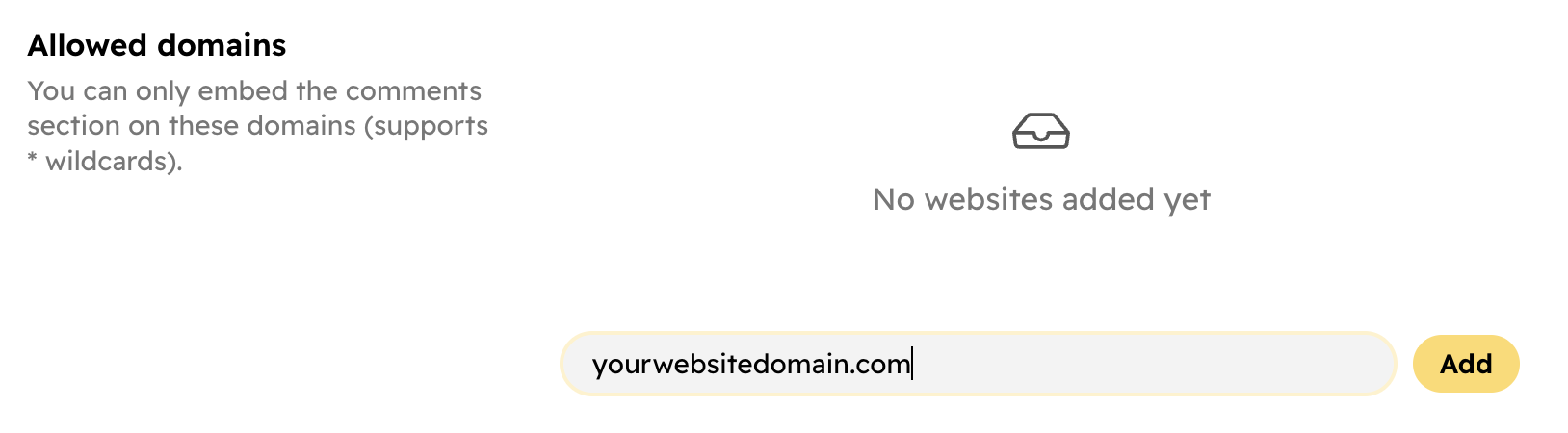
- Go to the Hyvor Talk Console → Settings → Website → Allowed Domains and add your website's domain(s)
to the allowed domains list. This is required for Hyvor Talk to work on your website.
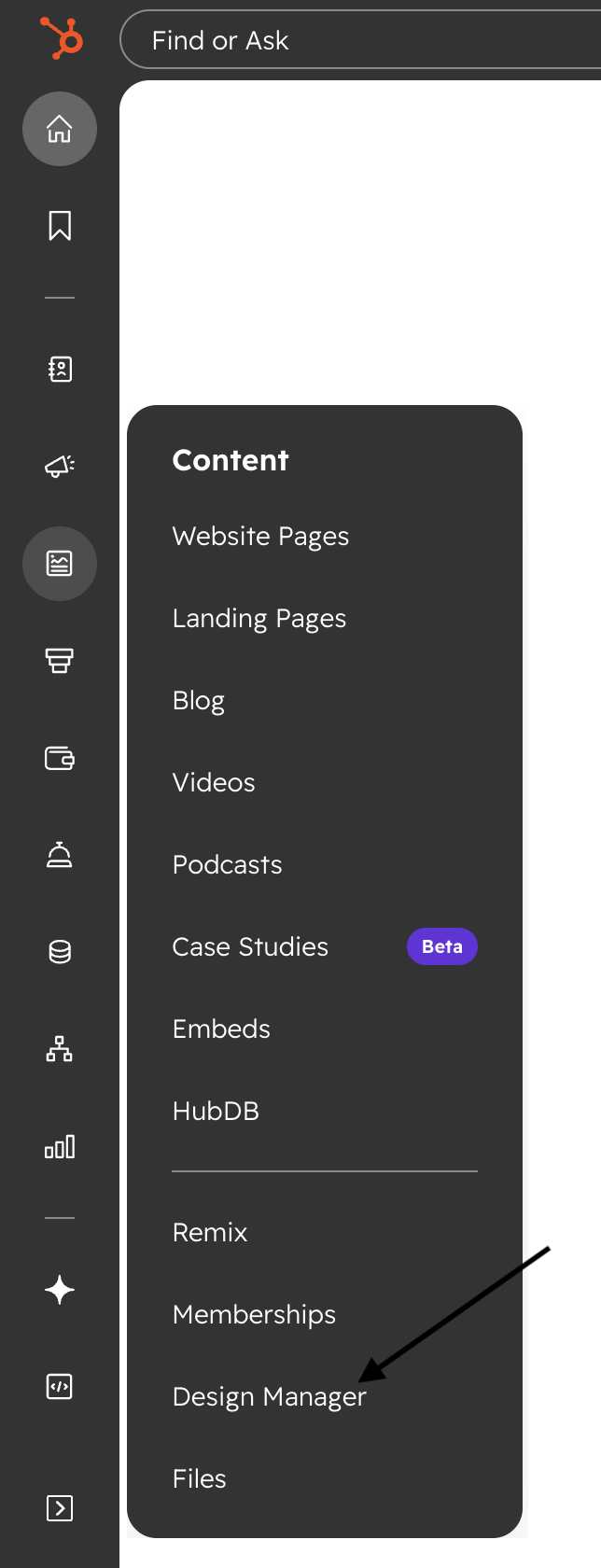
- Go to your HubSpot dashboard. Navigate to Content → Design Manager.
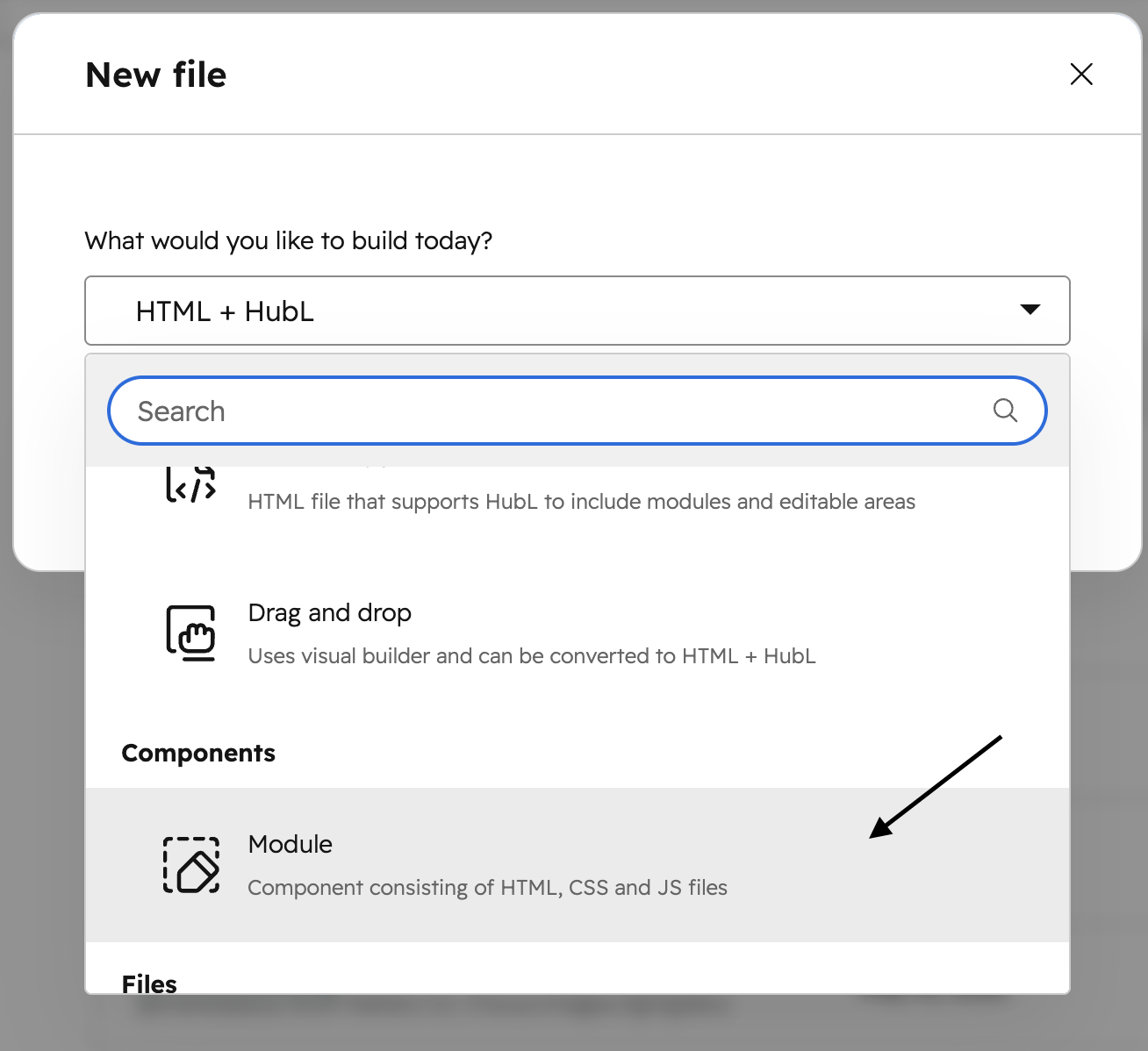
- Click on the Create a new file button and select Module.
- Name your module (e.g., "Hyvor Talk Embed") and choose where you will use this module (for example,
landing pages, blog posts, site pages). You can always choose more options as per your requirements.
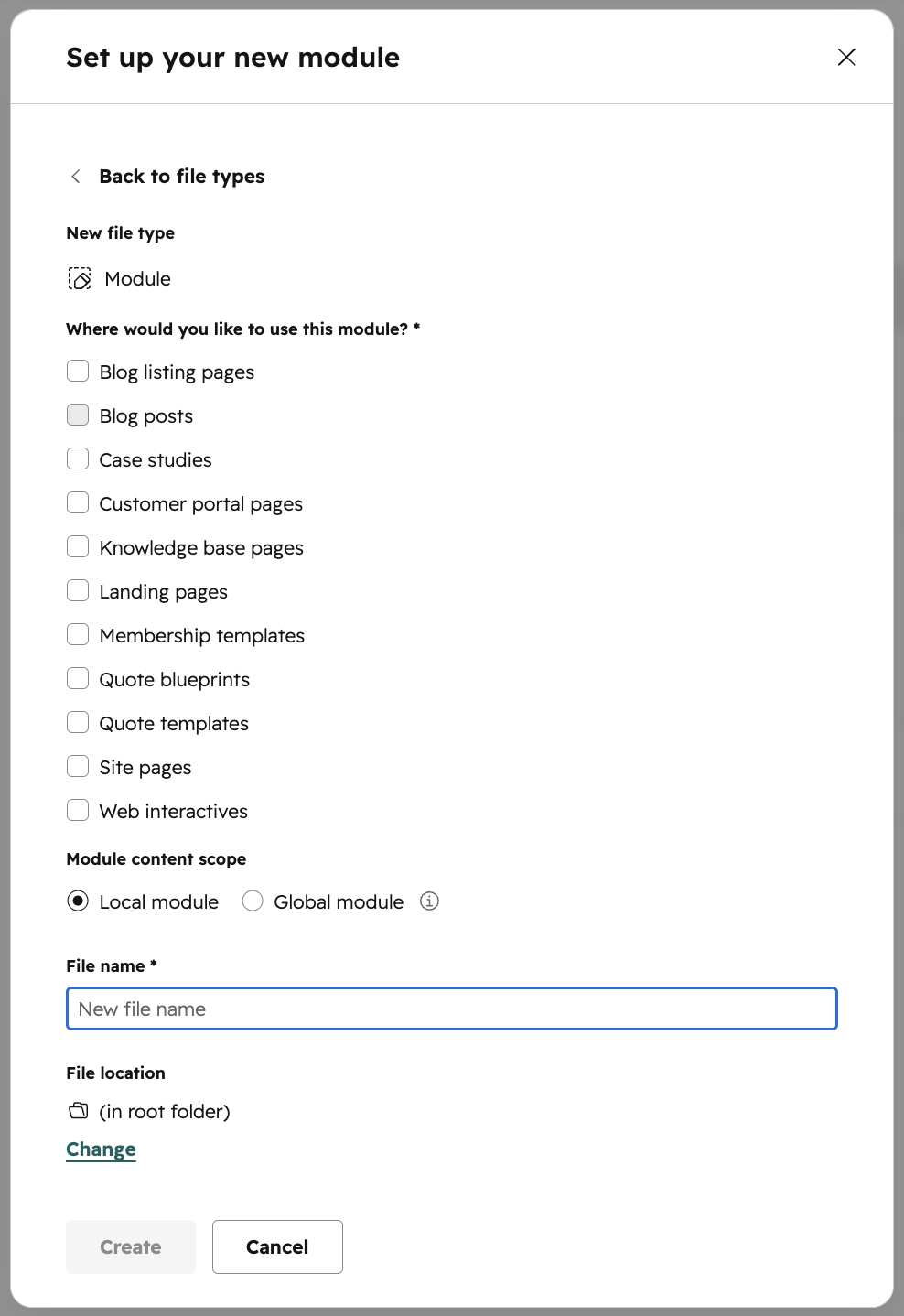
- Choose the module's content scope as relevant to your needs. Global scope is recommended as it makes the module available across all pages.
- Click on the Create button to create the module.
- Copy the following code and paste it into the module's HTML section. Then, click on the Publish button to save the module.
<script async src="https://talk.hyvor.com/embed/embed.js" type="module"></script>
<hyvor-talk-comments
	website-id="YOUR_WEBSITE_ID">
</hyvor-talk-comments>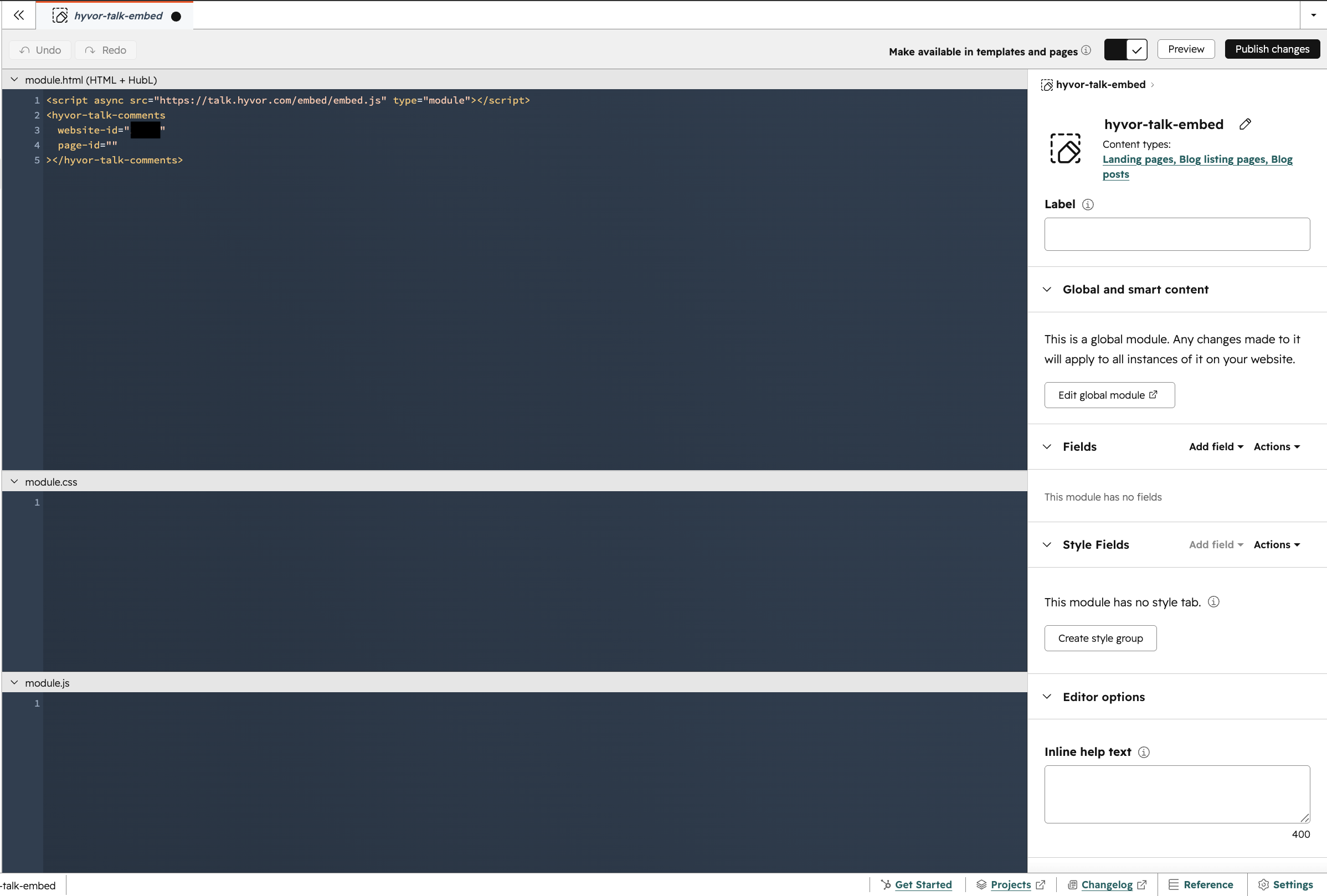
1. Embedding on a landing page or website
- In your HubSpot editor, navigate to the page where you want to embed Hyvor Talk.
- Click on Add Section, choose Blank Layouts, and then choose any kind of section according to your preference.
- Click on the plus icon (+) to add a new module and select the Hyvor Talk Embed module you created
earlier.
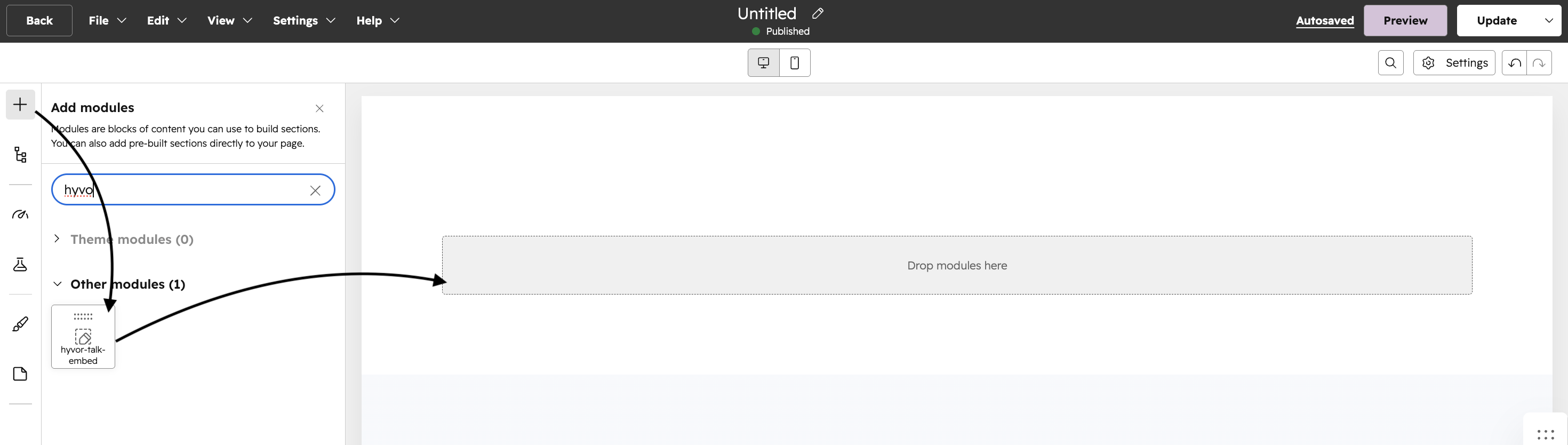
- Publish the page to make the comments section live.
2. Embedding on a blog
To add Hyvor Talk to your blog, you need to edit your blog template.
- Go to Design Manager, then find and open the module we created earlier.
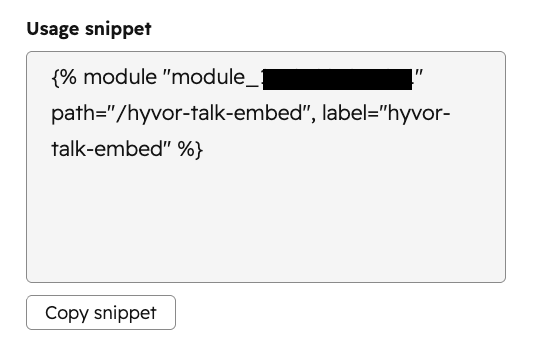
- Copy the module's snippet code given at the bottom right corner of the editor. Keep this code handy as
you will need it in the next steps.
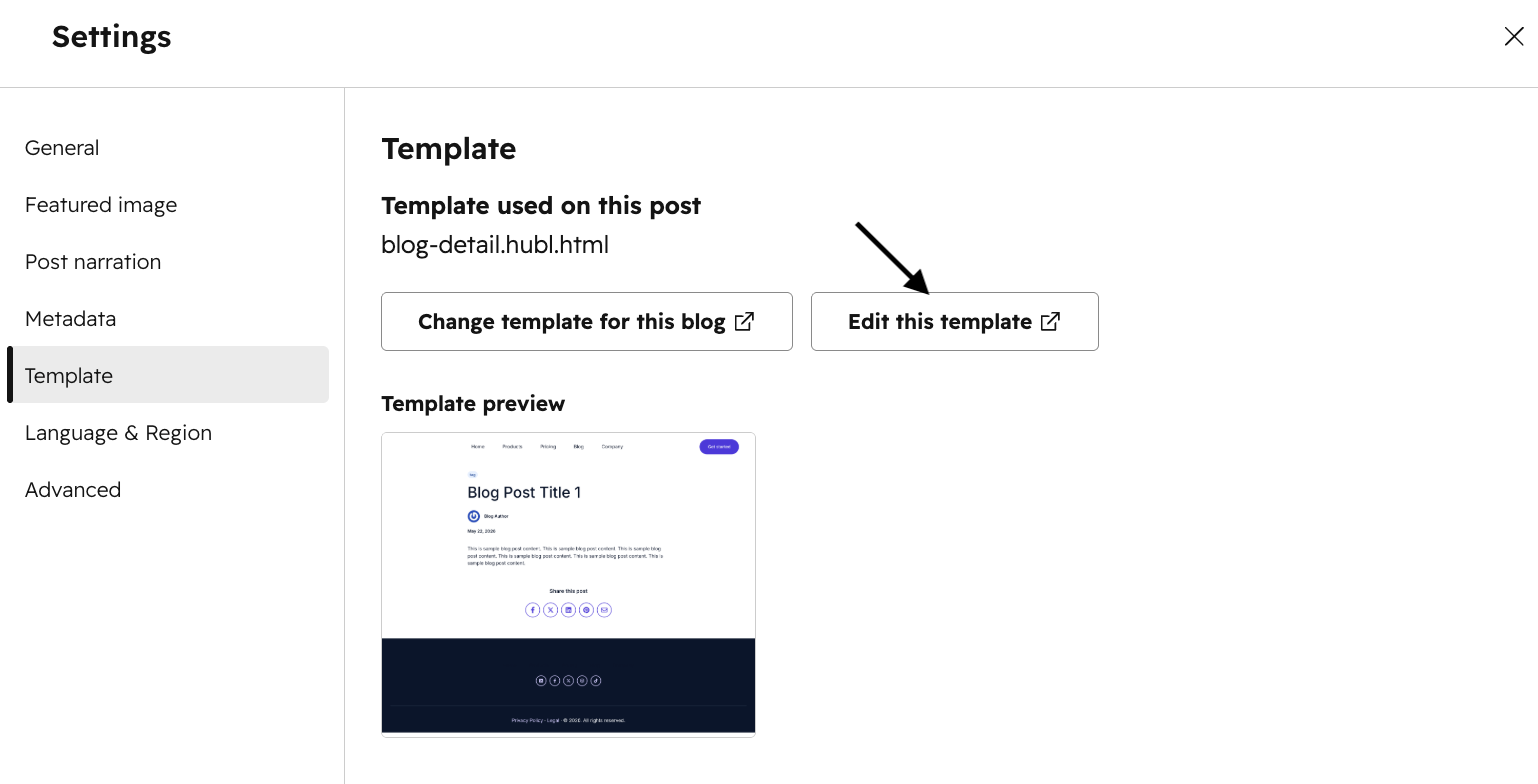
- In your HubSpot editor, navigate to your blog dashboard and choose the blog you want to add comments to.
- Then go to Settings → Templates → Edit this template.
- Choose the template file where blog posts are rendered. This is usually the file named
blog-post.htmlor similar. You might need to clone the template to edit it. - Look for the following section in your template code.
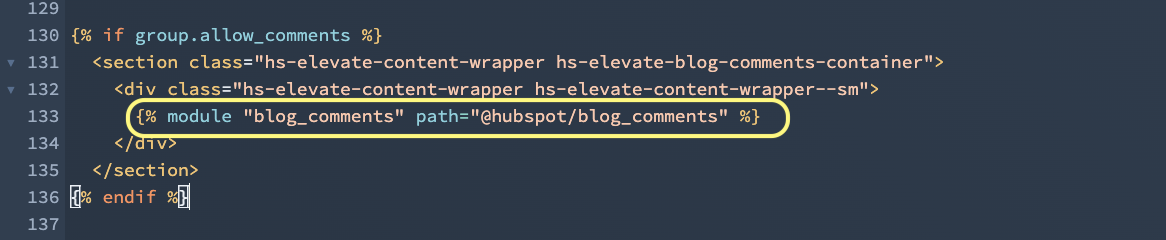
- Replace the highlighted part with the copied module's snippet code.
- Publish the template to make the comments section live on all your blog posts.