Install: Squarespace
* Requires a Squarespace Business plan or above
Option 1: Using a Code Block
This method works for all pages. However, you need to add the code block to each page separately. Also, Advanced Code Blocks are only available in Squarespace Business, Commerce, Professional, and Premium plans.
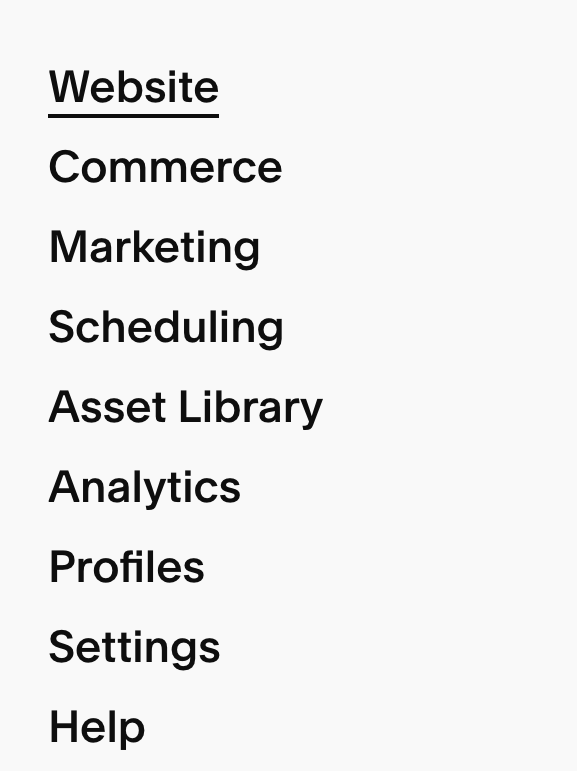
- In the Squarespace Dashboard, go to Website.
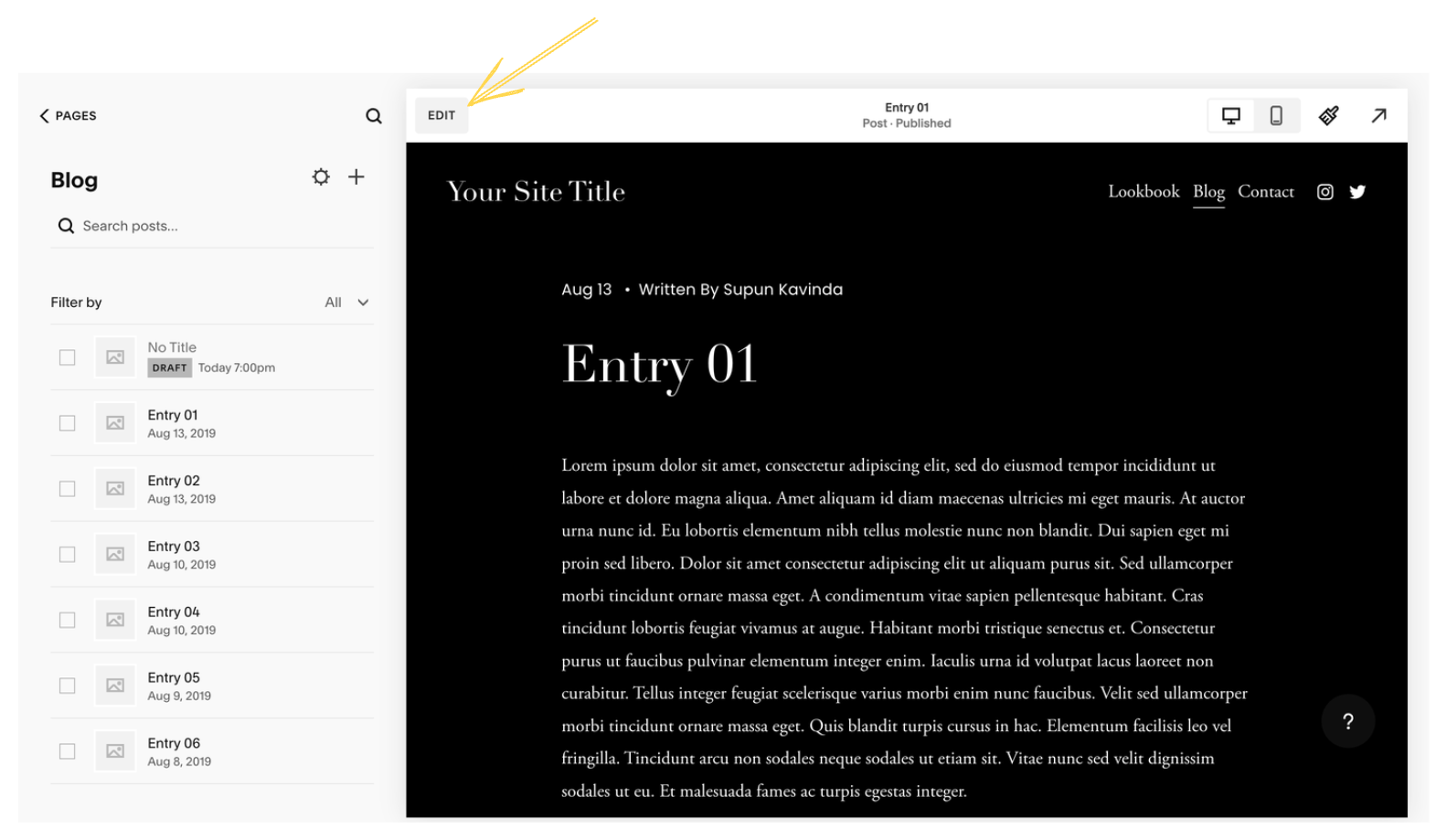
- Select the page you want to add comments to and click Edit.
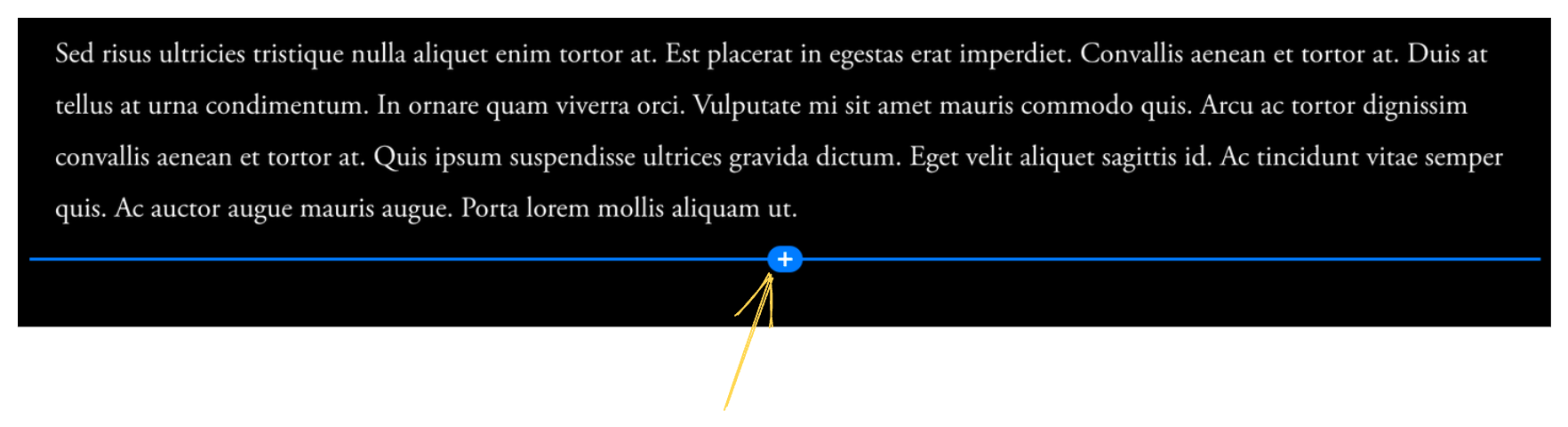
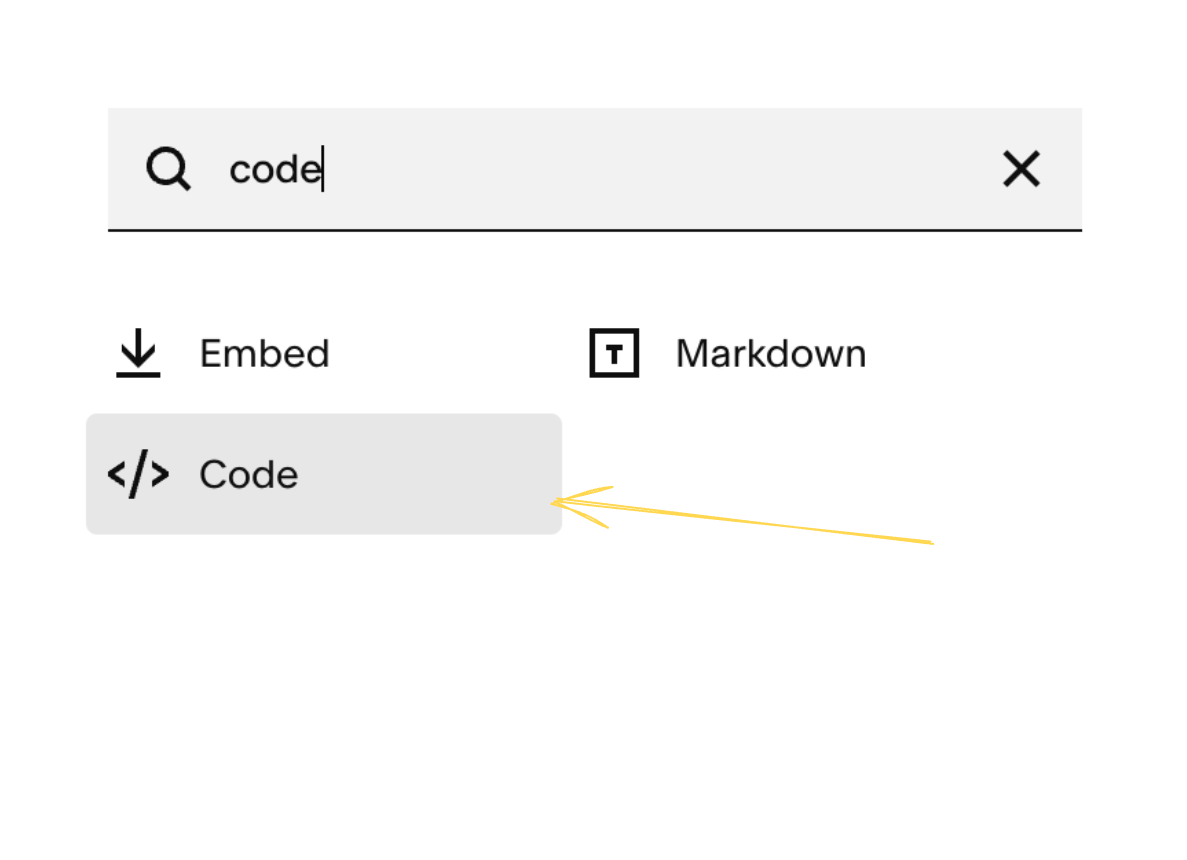
- Then, add a point and select Code in the dropdown.
- For comments, paste the code below.
<script async src="https://talk.hyvor.com/embed/embed.js" type="module"></script>
<hyvor-talk-comments
	website-id="YOUR_WEBSITE_ID"
	page-id=""
></hyvor-talk-comments>
Replace YOUR_WEBSITE_ID with your website ID, which you can find in the Hyvor Talk Console at Settings → Website.
Other embeds can be added using the same method.
Option 2: Install on Blog Pages
This method is the easiest if you want to add comments to your blog pages.
- In the Squarespace Dashboard, go to Website.
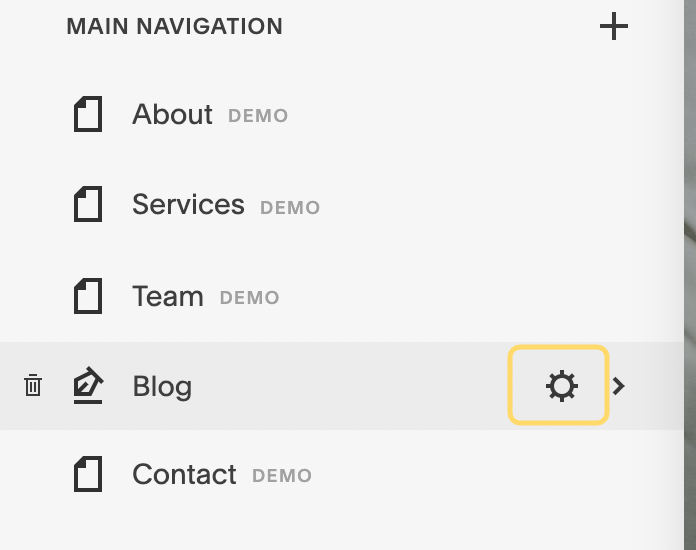
- Choose Blog settings (⚙️).
- In the settings popup, go to Advanced → Blog post item code injection and paste the code
below for comments.
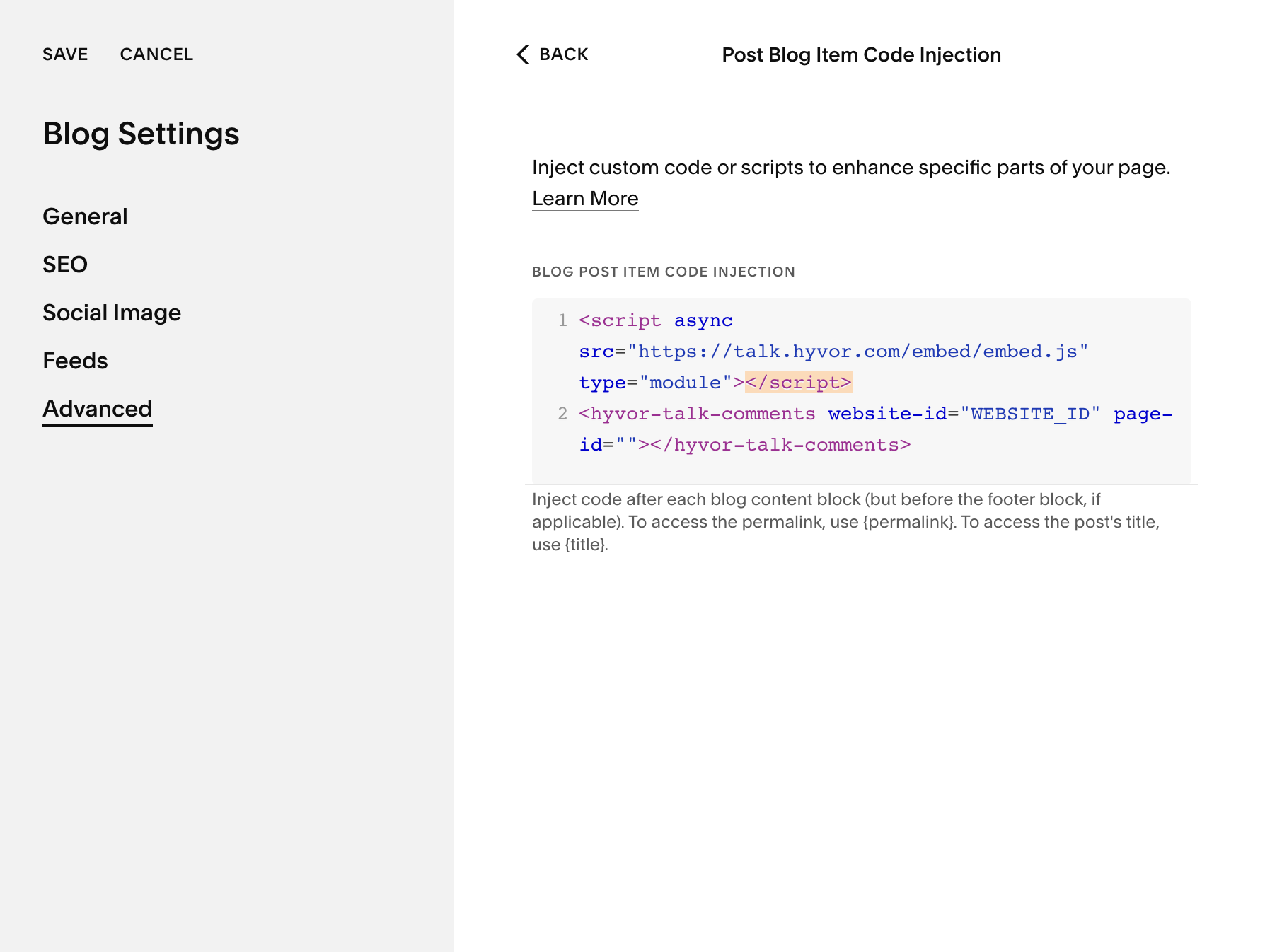
<script async src="https://talk.hyvor.com/embed/embed.js" type="module"></script>
<hyvor-talk-comments
	website-id="YOUR_WEBSITE_ID"
	page-id=""
></hyvor-talk-comments>